
Global Variables
A global variable is a named snippet you define once in QuickAdd’s settings and
reuse anywhere QuickAdd fills in placeholders. Keep your list of projects, a
folder path, or a block of boilerplate in one place, then drop it into any
choice or template with {{GLOBAL_VAR:<name>}}. Edit the snippet in settings
and every choice that uses it updates at once.
Unlike a run variable, which lives only while one choice is running, a global variable is saved with your vault and available to every choice, every time.
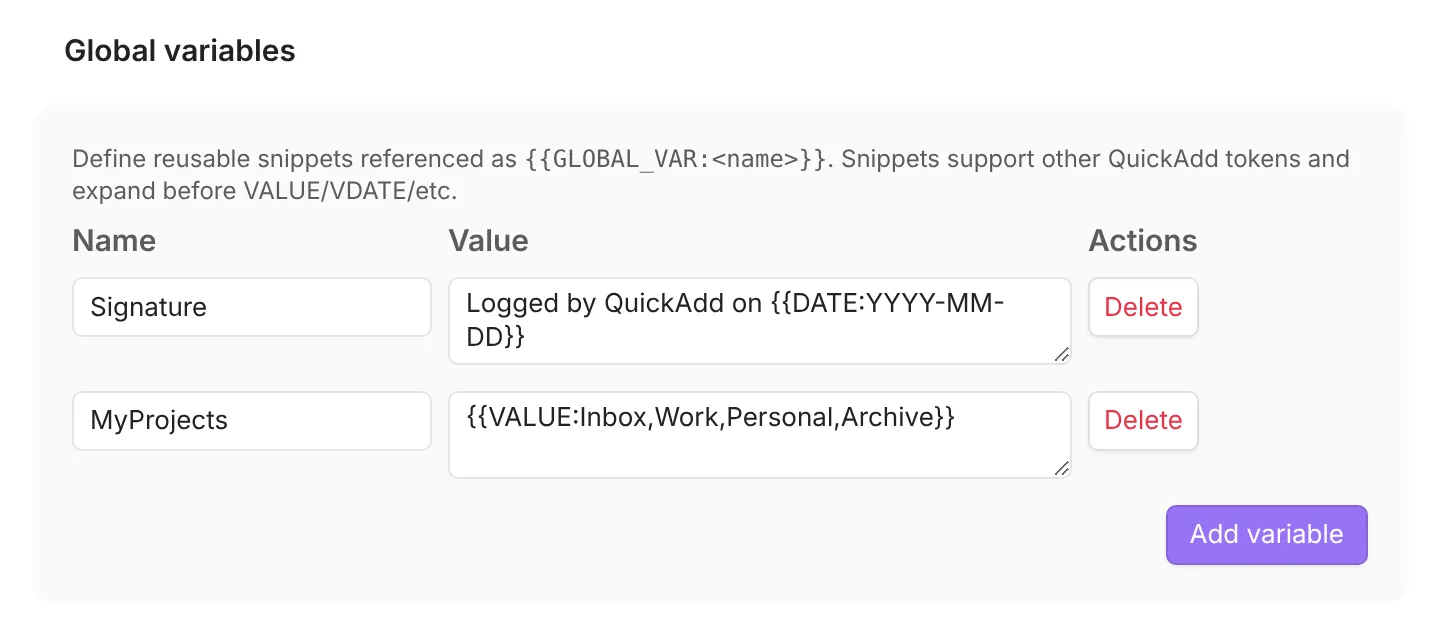
For example, define a snippet named Signature:
Name: SignatureValue: Logged by QuickAdd on {{DATE:YYYY-MM-DD}}Then use it in a capture or template:
{{GLOBAL_VAR:Signature}}Logged by QuickAdd on 2026-07-08Snippets can hold other placeholders (like the {{DATE}} above), so a global
variable can be a fixed string, a small template, or a reusable option list.
Good places to use one:
- A single list of projects, tags, or folders reused across many choices and templates
- Constants you’d otherwise retype: paths, emojis, boilerplate text, or a YAML block
Define a global variable
Section titled “Define a global variable”- Open Settings → QuickAdd → Advanced → Global variables. Before QuickAdd 2.30.0, Global variables is a section of the main QuickAdd tab.
- Add a name and a value. The value is free text and supports all of format syntax.
- That’s it - changes save automatically as you type.
Use it anywhere: {{GLOBAL_VAR:<name>}}
Section titled “Use it anywhere: {{GLOBAL_VAR:<name>}}”Write {{GLOBAL_VAR:<name>}} and QuickAdd replaces it with that snippet’s
value. It works everywhere QuickAdd formats text:
| Where | Which fields |
|---|---|
| Template choice | File name, folder paths, template content |
| Capture choice | Target path, content formatting |
| Macros | Inline formatting strings |
Good to know:
- The
GLOBAL_VARkeyword is case-insensitive, so{{global_var:Signature}}also works. The name after the colon is case-sensitive:{{GLOBAL_VAR:signature}}does not find a variable namedSignature. - A name that doesn’t match any global variable becomes an empty string rather than erroring.
Put other placeholders inside a snippet
Section titled “Put other placeholders inside a snippet”A snippet’s value can contain any QuickAdd placeholder - {{VALUE:...}},
{{VDATE:...}}, {{FIELD:...}}, {{RANDOM:n}}, and so on. When the snippet is
inserted, those placeholders run just like they would if you’d typed them
directly.
Name: MyProjectsValue: {{VALUE:Inbox,Work,Personal,Archive}}Projects/{{GLOBAL_VAR:MyProjects}}/{{DATE:YYYY}}/Running a choice that uses MyProjects shows the Inbox / Work / Personal / Archive picker, and your pick lands in the path.
Good to know:
- A snippet can reference another global variable. QuickAdd resolves up to 5 levels of nesting, so an accidental loop stops instead of hanging.
- Globals expand early in the formatter, so any placeholders inside a snippet are processed by the passes that follow.
- The one-page input form looks inside your snippets too, so prompts they introduce (like
{{VALUE:...}}) appear up front with the rest.