
This page is a reference for the QuickAdd settings tab, one group at a time. Each entry says what the setting does and what changes when you turn it on. Open the tab from Obsidian’s Settings → Community plugins → QuickAdd (or Settings → QuickAdd); changes save as you make them.
Choices & packages
Section titled “Choices & packages”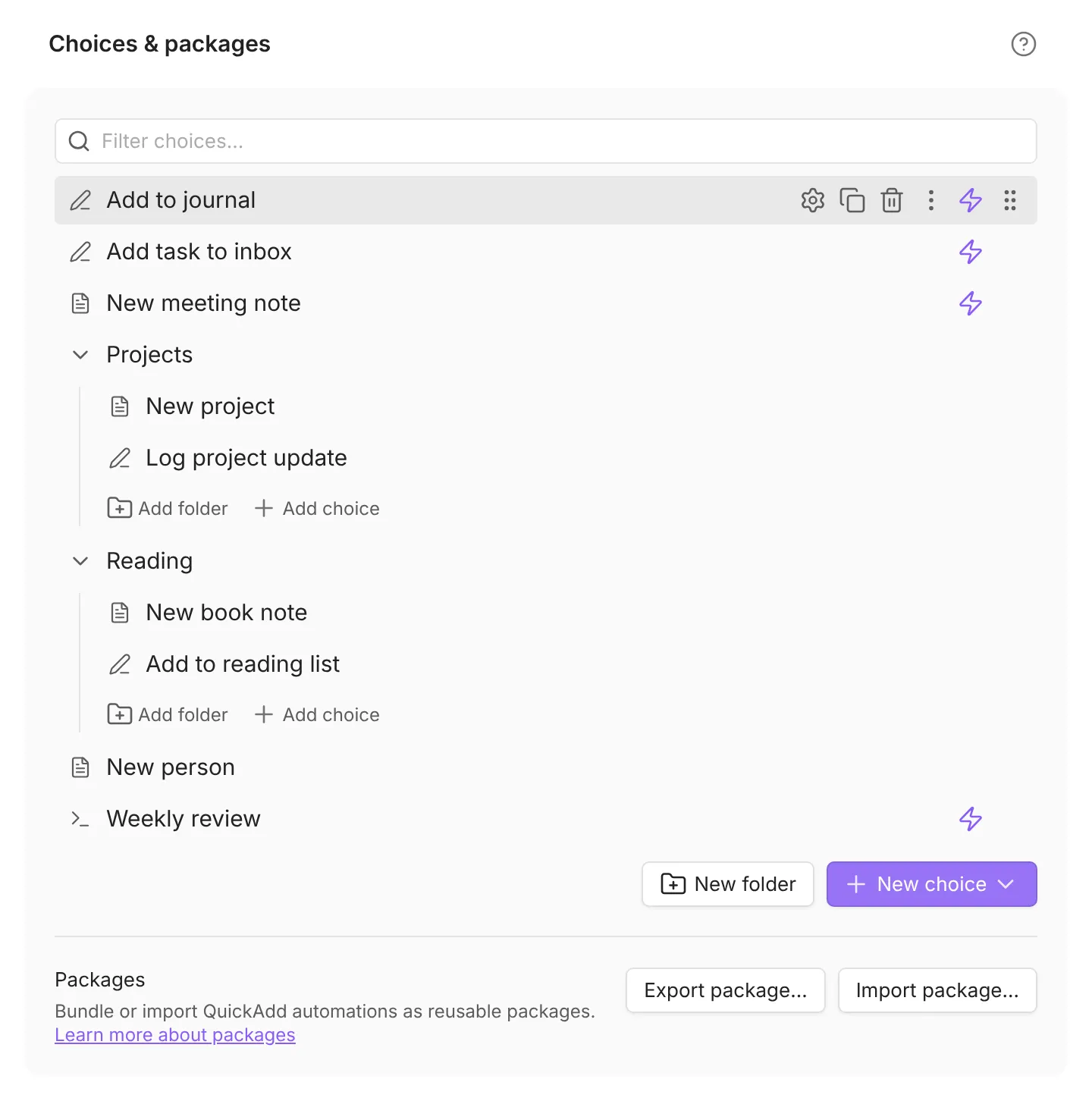
- Choices - build and organize your QuickAdd choices. This is the main list you add to, reorder, and configure. Click the gear on a choice’s row (on a phone, ⋮ → Configure) to open its settings as a page of this window; going back or closing Settings saves them (QuickAdd 2.30.0 or later; earlier versions open a dialog). See Template Choices, Capture Choices, Macro Choices, and Multi Choices.
- Packages - share a set of choices with someone else, or bring theirs in. Use Export package… to bundle your choices into a file, and Import package… to add someone else’s. See Share QuickAdd Packages.
- Use multi-line input prompt - get a large text box for text prompts instead of a single line, so you can write several lines at once. Multi-line prompts submit with Ctrl/Cmd+Enter, and plain Enter adds a newline. See Controlling Prompts.
- One-page input for choices - answer all of a choice’s questions in one form up front, instead of one prompt after another. Works with Template, Capture, and Macro choices. Each choice can override this individually. See One-page Inputs and Controlling Prompts.
Template folders
Section titled “Template folders”Tell QuickAdd where your templates live, so it can suggest them when you configure a choice. Click Add folder and pick a folder from the list. Once you have one, add more with the + button next to the heading (on phones, the Add folder row below the list); remove one with the × on its row. Add as many folders as you like. Leaving the list empty suggests every template file in the vault, but it also removes the New note from template launcher row, and the command of the same name will only point you back here until a folder is configured.
Notifications
Section titled “Notifications”- Announce updates - see what changed when a new version installs, including new features, demo videos, and bug fixes. Choose Every release, Feature releases (default; new features and breaking changes, not bug-fix-only releases), or Never.
- Show capture notifications - get a confirmation that a capture landed. When on, QuickAdd shows a notice after content is captured successfully.
AI & online
Section titled “AI & online”- Disable AI & online features - stop the plugin from reaching external providers like OpenAI. This blocks plugin features such as the AI Assistant from making those requests. User scripts can still run arbitrary code, including contacting external providers, so this setting does not affect them. Turn it off to use the AI Assistant.
Appearance
Section titled “Appearance”- Show icon in sidebar - add the QuickAdd icon to the sidebar ribbon for one-click access. Requires a reload to take effect.
Advanced
Section titled “Advanced”Settings most vaults never change are on the Advanced page, the last entry in the QuickAdd tab. Settings search finds them there too. The page is new in QuickAdd 2.30.0; earlier versions show these settings on the main tab, under the same section names.
Choice picker
Section titled “Choice picker”The choice picker is the list you see when you run QuickAdd: Run.
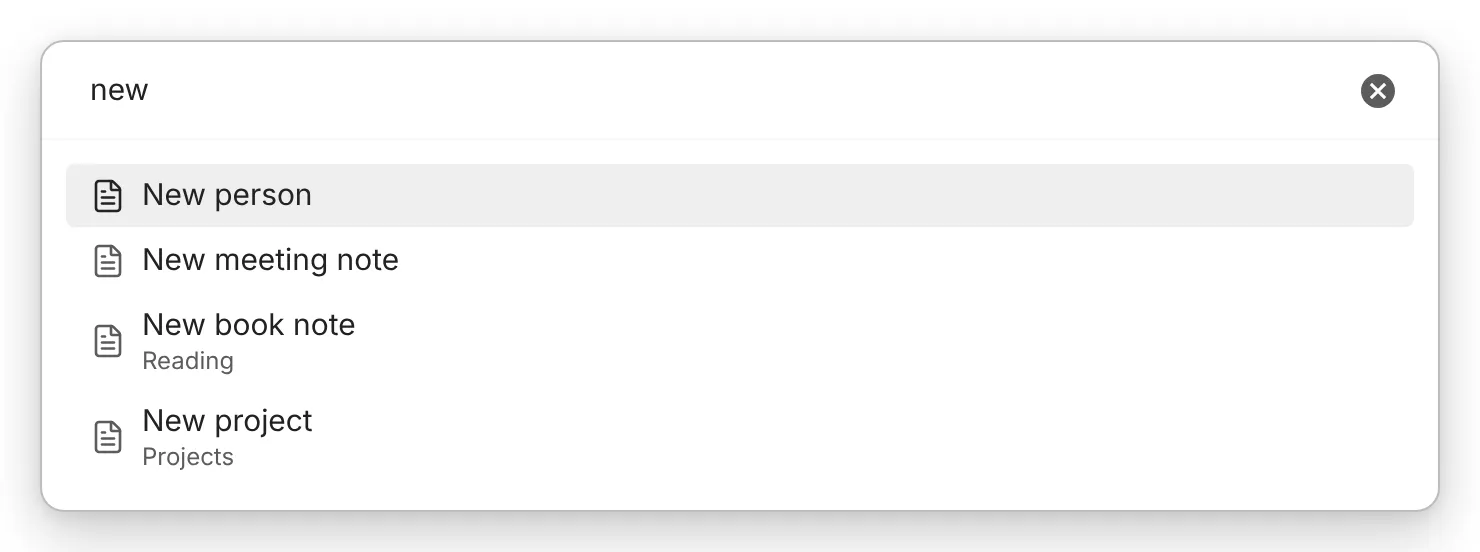
- Search nested choices - find a choice even when it lives inside a folder. When on, searching also matches choices nested in folders and shows their path. A nested match can rank above a same-level one. Turn it off to search only the level you have open.
- “New note from template” in the launcher - decide where the “create a note from a template” row sits in the picker, so you can make a note from any template without building a dedicated Template choice. Bottom (default) keeps your most-used choice in the first slot, Top makes the template row first, and Hidden removes it. The row only appears once you have a template folder configured. The New note from template command is always in the command palette, but it needs a configured folder too - without one it shows a notice and opens these settings.
- Use editor selection as default Capture value - let a Capture reuse text you already have highlighted. When on, Capture uses the current editor selection as
{{VALUE}}and may skip the prompt entirely. When off, Capture always asks for{{VALUE}}. Individual Capture choices can override this. - Name pasted images after the note title - name clipboard images after the destination note instead of
Clipboard image YYYY-MM-DD HH.MM.SS. Applies when you paste an image into a prompt whose answer lands in note content, and when Capture’s{{CLIPBOARD}}falls back to an image. If the destination is not known yet, QuickAdd keeps the timestamp name. Duplicate names follow Obsidian’s attachment folder setting. Off by default. - Persist input prompt drafts - don’t lose what you typed if you close a prompt by accident. When on, a closed prompt keeps its draft and restores it when you reopen. Drafts last only for the current session.
- Date aliases - set your own shortcodes for natural-language dates, so typing
tmin a date prompt meanstomorrow. Write one per line asalias = phrase, for exampletm = tomorrow. Reset to defaults restores the built-in aliases.
Notifications
Section titled “Notifications”- Show input cancellation notifications - get a notice when you dismiss a prompt without submitting. Turn it off to avoid the extra notice every time you cancel a prompt.
Properties
Section titled “Properties”- Convert string front matter variables to typed properties (Beta) - turn text values into real Obsidian property types so front matter reads correctly. List and object values from scripts are always written as proper properties (a list value becomes a List property), so templates produce valid front matter without this toggle. Turning it on also converts string values: a comma or bullet-list string becomes a List,
"42"becomes a Number,"true"becomes a Checkbox, and so on. Off by default, because the string conversion is a beta heuristic that can have edge cases. See Template Property Types (Beta).
Global variables
Section titled “Global variables”- Global variables - define reusable snippets once and drop them in anywhere QuickAdd formatting is supported. These are vault-scoped. See Global Variables.
Obsidian URI
Section titled “Obsidian URI”- Allow URI x-callback-url - let an
obsidian://quickaddlink report its result back to whoever launched it. Off by default, because the callback URL is set by whoever creates theobsidian://link and a successful callback can carry the affected note’s vault path. When on, anobsidian://quickaddURI may open a callback URL (x-success/x-error/x-cancel) after a Template or Capture choice finishes, sending the outcome and, on success, the note’s vault path and URL to that callback. Onlyshortcuts:andobsidian:callback URLs are permitted. See Obsidian URI.
Choice icons
Section titled “Choice icons”- Automatic choice icons - QuickAdd gives each choice type a default Lucide icon:
file-textfor Template,pencilfor Capture,terminalfor Macro, andfolderfor Multi. These show in the QuickAdd launcher, inside Multi choice pickers, and on registered commands in the command palette and mobile editing toolbar. - Override a choice’s icon - give a single choice its own icon. Open the choice’s configuration and set Icon to any Lucide icon id (for example
star); leave it empty to fall back to the choice type default. Icons take the active Obsidian theme’s color; QuickAdd does not set per-choice icon colors.
Choice icons introduced in QuickAdd 2.14.0.