
Raycast extension
The QuickAdd extension for Raycast runs your choices from Raycast on macOS and shows their prompts as Raycast forms and lists. It drives QuickAdd through the Obsidian CLI, so the choices you already have work from Raycast without changes.
Install
Section titled “Install”- In Obsidian, turn on Settings → General → Command line interface, then restart Obsidian.
- Install QuickAdd for Obsidian from the Raycast Store.
- In Raycast, search for Run QuickAdd Choice.
Run a choice
Section titled “Run a choice”- Open Raycast and run Run QuickAdd Choice.
- Pick a choice. The list groups choices by their Multi folder. Up to five choices you ran often and recently sit under Recent at the top.
- Press Enter. QuickAdd runs the choice inside Obsidian and sends each prompt to Raycast.
A choice that uses the current note, such as a capture to the active file or an appended link, first asks which note that is, since Raycast cannot see the tab open in Obsidian.
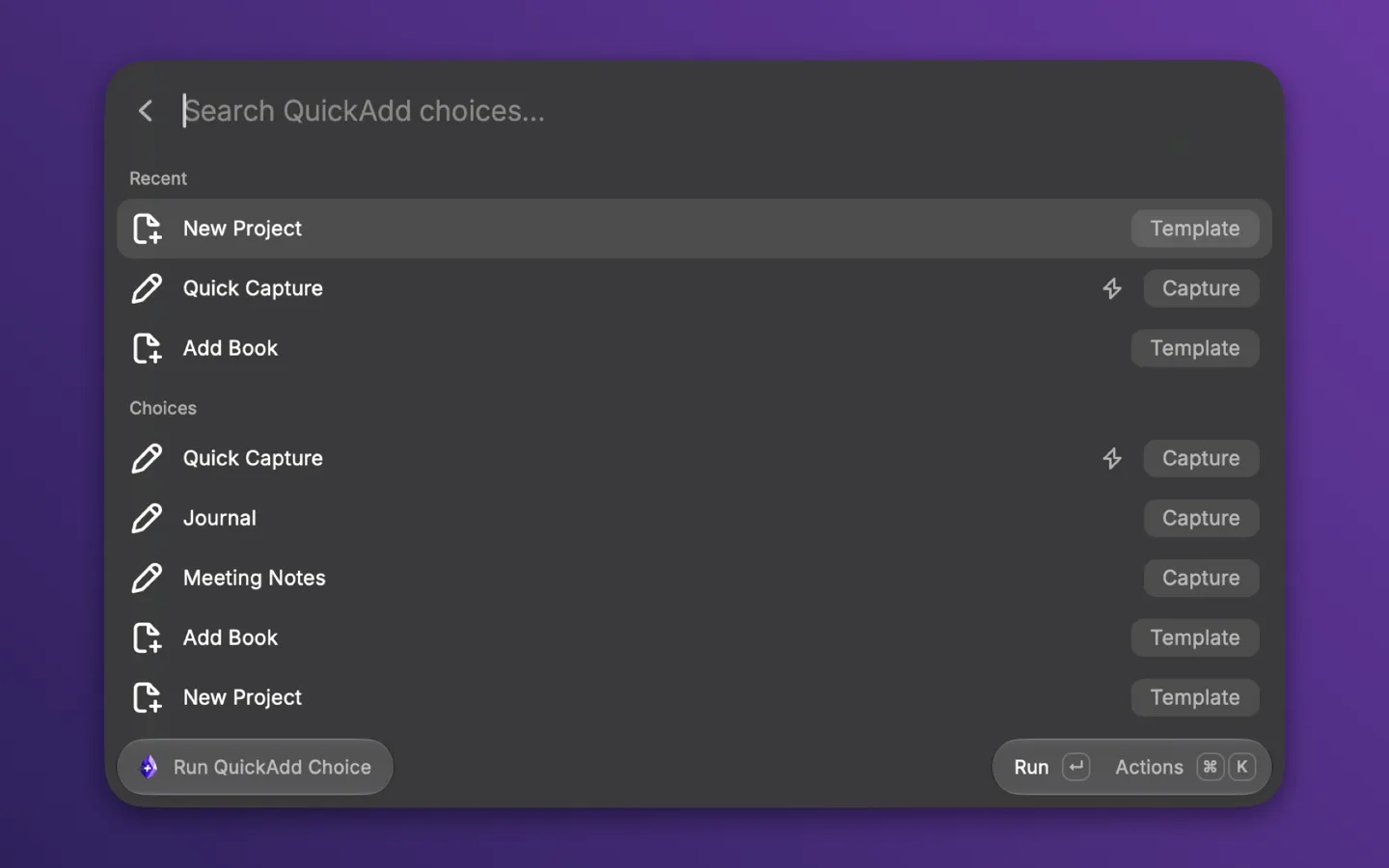
Every prompt QuickAdd raises appears in Raycast:
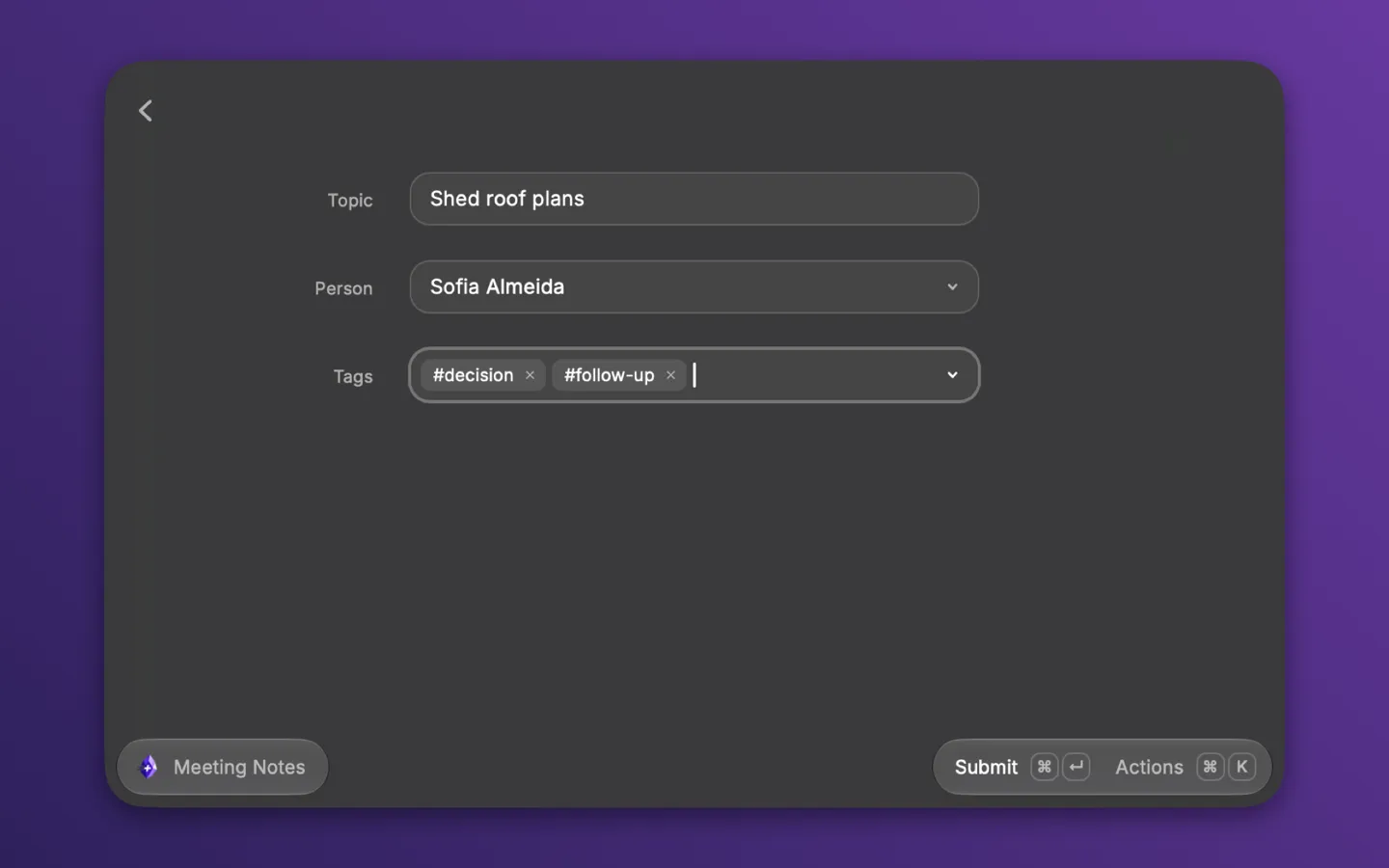
- A choice’s own inputs, such as
{{VALUE:title}},{{VDATE:due,YYYY-MM-DD}}, and a{{FILE:People}}note picker, arrive together as one form. - Prompts a macro script raises, such as
inputPrompt,suggester,yesNoPrompt,checkboxPrompt, andrequestInputs, arrive one at a time. A suggester is a searchable list, and an info panel is a page with a Continue action. - A date field gets a time picker when its format has a time part.
- A multi-select field is a tag picker. A value declared multi-line in
QuickAdd, such as
{{VALUE:notes|type:multiline}}, is a text area with room to dictate. - A note picker starts empty, as in QuickAdd’s own form, and a required one must have a pick before the form submits.
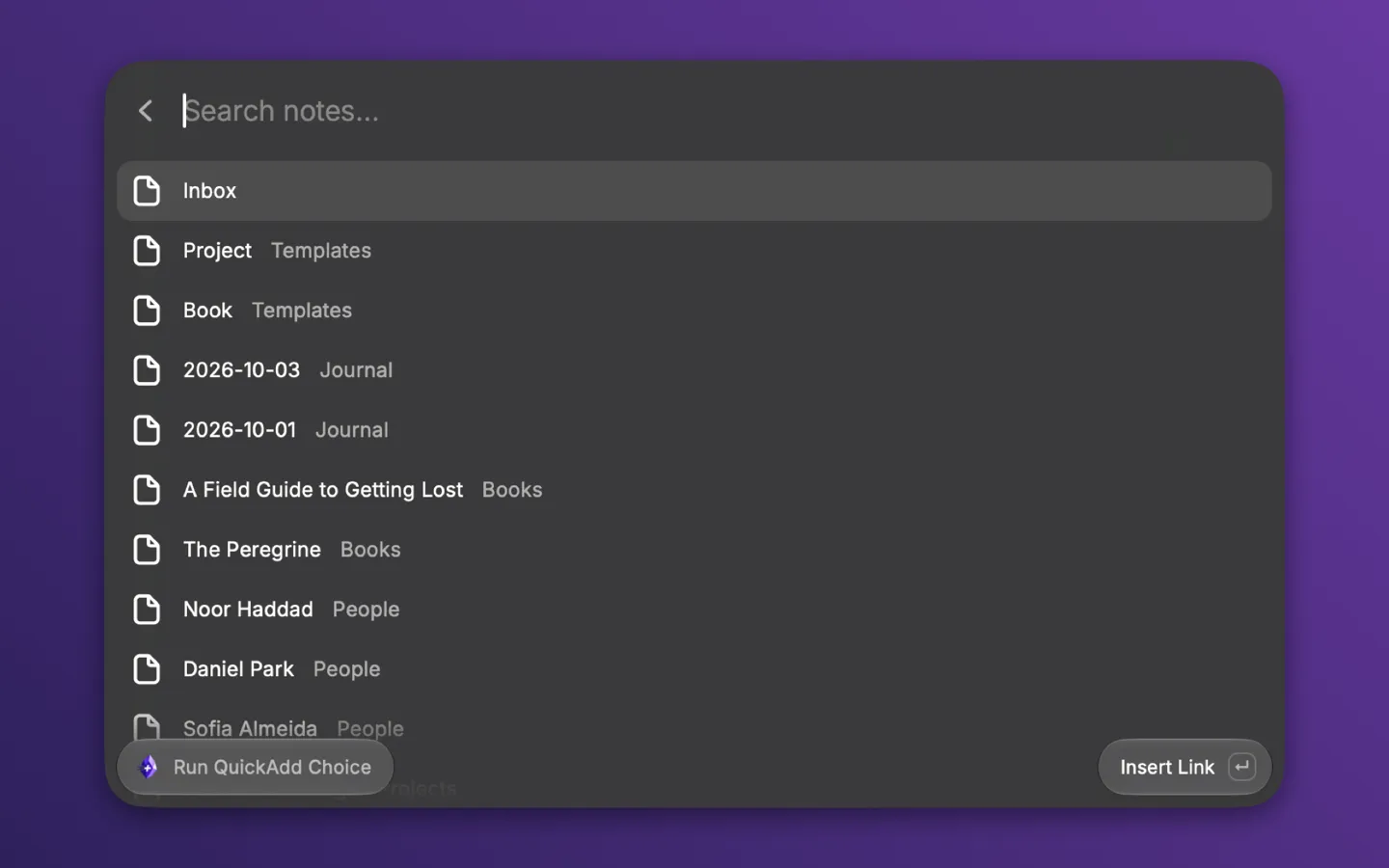
In a text field, type [[ to pick a note or alias, or type # at the start
of a word to pick a tag, most used first. The lists come from QuickAdd’s
quickadd:suggest, so they match what
the editor offers. Picking an item inserts the link or tag where you typed.
When the run finishes, a toast reads Created or Added to with the file name and offers Open in Obsidian. A choice with no prompts finishes with the toast alone.
To stop a run, choose Cancel Run (Cmd+Shift+Backspace) from the actions.
QuickAdd ends the run in Obsidian.
To run a choice with QuickAdd’s own dialogs instead, open the actions (Cmd+K)
and choose Run in Obsidian. Use it for a choice whose prompts Raycast cannot
show, such as a Templater prompt.
Capture from anywhere
Section titled “Capture from anywhere”Three commands send text to a Capture choice without opening a list:
| Command | Sends |
|---|---|
| Quick Capture | The text you type as the command’s argument |
| Capture Selection | The text selected in the frontmost app |
| Capture Clipboard | The text on the clipboard |
Set each command’s Capture Choice preference to the name of a Capture
choice, as shown in Run QuickAdd Choice. The text runs as the choice’s
{{VALUE}}. The command runs without prompts, so pick a choice that needs
nothing else, such as a capture whose target file exists or that creates it. If
several vaults have QuickAdd, also set the Vault preference.
Give each command a hotkey in Raycast’s extension settings. Capture Selection reports No text selected and Capture Clipboard reports Clipboard is empty when there is nothing to send.
Hotkeys and Quicklinks
Section titled “Hotkeys and Quicklinks”To put one choice in Raycast’s root search, select it in Run QuickAdd
Choice, open the actions (Cmd+K), and choose Pin as Quicklink. Raycast
creates a Quicklink named after the choice. Search for it by name, or give it a
hotkey or an alias in Raycast’s settings. A pinned choice runs in the vault it
was pinned from and opens its prompts at once.
Pin as Quicklink with Argument makes a Quicklink that takes text inline.
Type the Quicklink’s name, press Tab, type the text, and press Enter. The text
runs as the choice’s {{VALUE}}, so a pinned capture with a plain {{VALUE}}
works like Quick Capture for that one choice. Any other prompt still opens in
Raycast. A choice without a plain {{VALUE}} ignores the text.
A choice with its command toggle on in QuickAdd shows a bolt icon in the list. Those are the choices you reach for by hotkey, so they are good candidates to pin.
Multiple vaults
Section titled “Multiple vaults”The extension reads Obsidian’s vault list and uses the one vault that has QuickAdd enabled. When several vaults have it, Run QuickAdd Choice asks which vault to use, and the capture commands stop with a message until you set the Vault preference. A set Vault preference wins over detection. A pinned Quicklink always runs in the vault it was pinned from.
When the vault is closed, the extension opens it, which starts Obsidian when needed, and waits about 20 seconds for QuickAdd to answer. Run QuickAdd Choice reopens itself once the vault is ready, so Raycast comes back if Obsidian took the focus.
Obsidian addresses a vault by its folder name. When two registered vaults share a folder name, the extension refuses to run in either of them, because the CLI could reach the wrong one. Rename one of the folders.
What you need
Section titled “What you need”| Feature | Needs |
|---|---|
| Everything | macOS, Raycast, and Obsidian 1.12 or later installed with the 1.12 installer, with Command line interface turned on. The in-app update alone does not add the CLI |
| Quick Capture, Capture Selection, Capture Clipboard | QuickAdd 2.15 or later |
| Run QuickAdd Choice, with a choice’s inputs on one form | QuickAdd 2.17.2 or later |
| Cancel Run stops the run in Obsidian, and the Created and Added to finish messages | QuickAdd 2.20 or later |
Note pickers that start empty, [[ and # completion, and Escape ending the run |
QuickAdd 2.31 or later |
| Asking which note a choice should use as the current note | QuickAdd 2.32 or later |
Limitations
Section titled “Limitations”- Templater’s own prompts, such as
tp.system.prompt, open in Obsidian. When a run waits a few seconds with no prompt, Raycast says that QuickAdd may be asking something in Obsidian and offers Open Obsidian (Cmd+O). {{SELECTED}}inside a choice reads the selection in Obsidian’s editor, not the text selected on your Mac. Use Capture Selection for the Mac selection.- Escape does not go back to the previous prompt. It leaves the run, and QuickAdd ends the run in Obsidian.
Troubleshooting
Section titled “Troubleshooting”- “Turn on Obsidian’s command line interface” or “Obsidian CLI not found”:
turn on Settings → General → Command line interface in Obsidian and
restart Obsidian. If the
obsidiancommand lives somewhere other than/opt/homebrew/bin,/usr/local/bin, or insideObsidian.app, set Obsidian CLI Path in the extension preferences. - “Another vault is also named …”: two registered vaults share a folder name. Rename one of the folders. See Multiple vaults.
- “Several vaults have QuickAdd” from a capture command: set the Vault preference to the vault to capture into.
- “Obsidian does not know …”: the Vault preference points at a folder Obsidian has not opened. Open it once with Open folder as vault.
- “Obsidian did not open … with QuickAdd ready within 20 seconds”: open the vault in Obsidian yourself, check that QuickAdd is enabled there, and run the command again.
- “Link and tag completion needs QuickAdd 2.31 or later”: update QuickAdd from Settings → Community plugins in Obsidian. The form still submits without completion.
- “Could not capture” with missing inputs: the capture choice asks for more
than
{{VALUE}}. Pick a choice that runs without prompts, or run it from Run QuickAdd Choice, which shows the prompts. - “Update the extension”: QuickAdd sent a prompt type this version of the extension does not know. Update the extension in Raycast.