
One-page Inputs
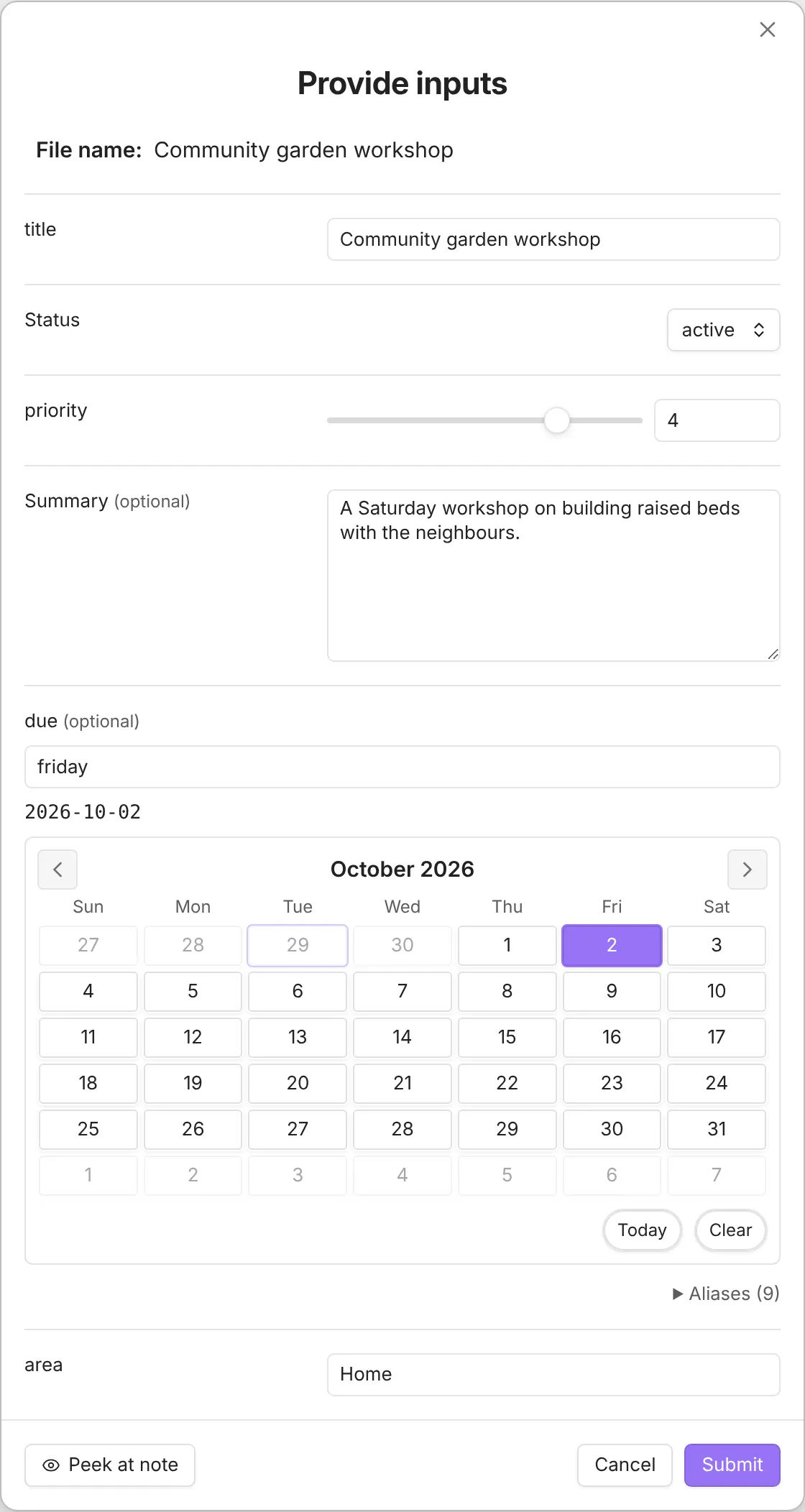
Normally QuickAdd asks for inputs one prompt at a time. Turn on one-page inputs and it gathers everything a choice needs into a single form you fill once, then runs. This is nicer when a choice asks for several things at once - a title, a date, and a status, say - and you would rather see them all together than click through them one by one.
For a task-oriented overview of prompts in general, see Controlling Prompts.
Turn it on
Section titled “Turn it on”Go to Settings → QuickAdd and toggle One-page input for choices.
It works with Template, Capture, and Macro choices.
When you run a Macro, the Templates and Captures you added to it share one form.
Fields appear in the order the choice uses them: the day first when Which day is Ask each time, then a Capture’s note picker (when it captures to a folder or a tag), a Template’s template path, folder and file name before the note content, a Macro’s steps in turn, and within each, the order they have in the format. Step-by-step prompts group one text’s fields by kind instead; see The order prompts appear in.
The form stops at the first step that might fill in or skip later answers: another Macro, a Multi, a Conditional, a user script, or an AI command. Anything after that step is asked later. Another Macro gets its own form. QuickAdd does not guess which side of a Conditional will run.
Two Captures in a row share one form. A Capture, then a user script, then another Capture do not share a form. You fill the first Capture now, and the second Capture later. If the user script lists its own inputs, those still appear on this form. See User scripts.
To keep one Template or Capture off the form, set its One-page input override to Never.
Turn it on or off for one choice
Section titled “Turn it on or off for one choice”Template, Capture, and Macro choice builders have a One-page input override dropdown that overrides the global setting for that one choice:
- Follow global setting - inherit the enclosing Macro’s override, or use the global toggle (default).
- Always - force the one-page form for this choice even when it is off globally.
- Never - use step-by-step prompts for this choice even when it is on globally.
Macro overrides
Section titled “Macro overrides”A Macro’s override also applies to its steps, including steps that ask for inputs later. A step’s explicit Always or Never takes precedence over its Macro. Nested Macros inherit the enclosing Macro’s override unless they have their own.
Choose or create a note
Section titled “Choose or create a note”When a Template searches existing notes before creating, the one-page form includes
its note picker alongside the Macro’s Capture fields. Choose an existing note or
create a new one. With Open note, Template fields appear only when creating.
With an existing-note update action,
inputs needed by the template remain visible for the selected note. Inputs used
only in the new note’s name or folder stay hidden. Switching between notes keeps
your drafts. Each Capture’s anonymous {{VALUE}} has its own answer,
separate from the note title. Named inputs such as {{VALUE:details}} remain shared.
If that Template’s override is Never, QuickAdd shows its note picker first. After the Template finishes, remaining eligible Capture inputs appear together in one form. Scripts and conditional steps retain their execution boundaries.
What ends up in the form
Section titled “What ends up in the form”QuickAdd scans the choice for placeholders and turns each one into a field:
- Placeholders in file names, templates, capture content, and capture property names:
{{VALUE}},{{VALUE:name}},{{VDATE:name, YYYY-MM-DD}},{{FIELD:name|...}}, and{{FILE:folder|...}}. - Nested
{{TEMPLATE:path}}includes are scanned recursively, so their prompts show up too. {{VALUE|type:multiline}}and{{VALUE:name|type:multiline}}become textareas.{{VALUE:name|type:number|min:1|max:10}}becomes a bounded numeric input, and{{VALUE:name|type:slider|min:0|max:100|step:5}}becomes a slider plus numeric input.- The capture target file, when you are capturing to a folder or a tag. It is a searchable picker like a FILE input, and it also finds notes by their aliases. With Create file if it doesn’t exist, typing a new name offers Create new note: name, as the run’s picker does, and the capture creates that note. A note’s name or alias picks the note instead. The picker starts empty, and the form waits for a note before it submits (QuickAdd 2.30.0 or later; earlier versions picked the first note for you).
- Inputs declared by a user script inside a macro, if the script provides them.
For property captures, a plain VALUE
input uses the property’s Number or Checkbox widget when its type is known.
If the property or its type is not known yet, QuickAdd asks for that value after
resolving the target note and property. Choose when capturing also opens its
property picker at runtime.
Text and textarea fields support [[ file links and # tags. Peek at note
hides the whole form while you read or select text in the open note. Insert
selection returns text to the last text field you focused, or the first text
field if you have not focused one.
How dates behave in the form
Section titled “How dates behave in the form”- Date fields accept natural language, like
todayornext friday. - Short aliases work and are configurable in settings:
t(today),tm(tomorrow),yd(yesterday). - The field shows a formatted preview and stores a normalized
@date:ISOvalue internally.
How FIELD inputs behave
Section titled “How FIELD inputs behave”{{FIELD:...}}inputs suggest the values the property already has in your notes’ frontmatter (plus inlinekey:: valuefields with|inline:true).- The field is named after the property, or after its
|label:when it has one. {{FIELD:...|multi}}is not shown inline in the form, because vault field values can contain commas. QuickAdd collects the rest of the form first, then opens the regular multi-select for that field.
How FILE inputs behave
Section titled “How FILE inputs behave”{{FILE:folder}}appears as a searchable picker in the form. Search matches the friendly note title, file name, and full vault path.- The selected file is shown above the search field and can be removed or replaced.
- A single-select picker starts empty. Until a required one has a file, Submit and Ctrl/Cmd+Enter don’t submit: a notice names the field, and the form takes you to it. Where the field accepts a typed value, picking Create new note: name or Use “name” counts as its file. QuickAdd 2.30.0 or later; earlier versions picked the first file, so an untouched form used it.
{{FILE:folder|multi}}stays in the same form. Pick several files without opening a second modal, and remove the last pick by pressing Backspace in an empty search field.- Multi-select results keep the folder’s file order. File names and friendly labels containing commas are handled as complete values.
Inline FILE pickers introduced in QuickAdd 2.21.0.
Fields you can leave empty
Section titled “Fields you can leave empty”A field marked with the |optional flag
shows an (optional) badge and may be left blank. Leaving it blank stores an
intentional empty value, so the step-by-step prompt will not ask for it again
later.
Good to know:
- A field counts as optional only when every occurrence of that variable across the scanned formats is flagged.
- Optional dropdowns get a Skip (leave empty) entry; the first real option stays preselected.
- An optional single-file picker starts empty and submits empty unless you pick a file, like Skip in the step-by-step picker (QuickAdd 2.30.0 or later).
- An optional date field left blank resolves to empty. If what you typed cannot be read as a date, the field is handed to the regular step-by-step date prompt after you submit, instead of silently becoming empty.
When the form is skipped
Section titled “When the form is skipped”The form only opens when it has something to ask:
- If every required input already has a value (for example, prefilled by an earlier macro step), the form does not open.
- An empty string counts as an intentional value and will not prompt again. This applies to
{{VDATE}}too: a script-set""renders empty instead of re-prompting. - For Capture choices, a non-empty editor selection prefills
{{VALUE}}during preflight when selection-as-value is enabled.
What Cancel does
Section titled “What Cancel does”- Cancelling the form (Cancel button or Esc) cancels the whole run. QuickAdd does not fall back to the step-by-step prompts.
- If the form fails to open for some other reason (for example, a requirement could not be collected), QuickAdd logs a warning and runs the choice with the standard step-by-step prompts instead.
Reserved internal variables
Section titled “Reserved internal variables”QuickAdd uses reserved variable ids prefixed with __qa. for internal wiring
during preflight and runtime. Capture-target flags are scoped by choice id
(__qa.captureTargetFilePath.<choiceId>) so two captures in one macro get two
distinct fields. The unscoped value-__qa.captureTargetFilePath=… flag still
satisfies a collection that has exactly one capture-target field (a lone Capture,
or a macro with one folder/tag capture). It does not satisfy two capture-target
fields at once.
These internal keys will not collide with your own variables. Avoid using the
__qa. prefix in your scripts.
User scripts: declare inputs (optional)
Section titled “User scripts: declare inputs (optional)”To have a user script’s inputs appear in the one-page form during preflight,
export a static quickadd.inputs spec alongside your default export. This is
optional and non-executing.
Example (function default export):
export default async function entry(params, settings) { // ... your script ...}export const quickadd = { inputs: [ { id: "project", label: "Project", type: "text", defaultValue: "Inbox" }, { id: "due", label: "Due date", type: "date", dateFormat: "YYYY-MM-DD" }, { id: "confidence", label: "Confidence", type: "slider", defaultValue: "50", sliderConfig: { min: 0, max: 100, step: 5 } }, { id: "status", label: "Status", type: "dropdown", options: ["Todo","Doing","Done"] } ]};Example (object default export):
export default { async entry(params, settings) { // ... your script ... }};export const quickadd = { inputs: [ { id: "topic", type: "text" } ]};Supported input fields:
id(string, required)label(string)type(“text” | “number” | “textarea” | “dropdown” | “date” | “field-suggest” | “suggester” | “slider”)placeholder(string)defaultValue(string)options(string[] for dropdown and suggester)numericConfig(object for number:{ min?: number, max?: number, step?: number })sliderConfig(object for slider:{ min: number, max: number, step?: number };minandmaxare required,stepdefaults to1)dateFormat(string for date)description(string)optional(boolean - field may be left empty; shows an “(optional)” badge)suggesterConfig(object for suggester:{ allowCustomInput?: boolean, caseSensitive?: boolean, multiSelect?: boolean })
Field type details:
text: single-line text inputnumber: numeric input, optionally bounded bynumericConfigtextarea: multi-line text inputdropdown: fixed dropdown menu (no search, must select from list)date: date input with natural language supportfield-suggest: vault field suggestions (uses{{FIELD:...}}syntax). Matches are ranked likesuggesteroptions.slider: bounded numeric input with a slider and editable number field. RequiressliderConfig.minandsliderConfig.max; invalid configs fall back tonumber.suggester: searchable autocomplete with custom options (allows typing custom values)- Matches are ranked the way Obsidian’s quick switcher ranks them: an exact match first, then options that start with what you typed, then options with a word that starts with it, then options that contain it anywhere, and finally fuzzy matches. Within a group, shorter options come first. With
caseSensitive, only options that contain the typed text in the same case are listed. Ranking needs QuickAdd 2.28.0 or later; earlier versions list matches in the order ofoptions. - Supports multi-select mode via
suggesterConfig.multiSelect: true - Multi-select: select multiple items, separated by commas. Suggestions stay open after each selection. The text after the last comma is what gets ranked.
- Matches are ranked the way Obsidian’s quick switcher ranks them: an exact match first, then options that start with what you typed, then options with a word that starts with it, then options that contain it anywhere, and finally fuzzy matches. Within a group, shorter options come first. With
Scripts: request inputs at runtime (API)
Section titled “Scripts: request inputs at runtime (API)”From within a script, you can open one form that collects several inputs at once using the QuickAdd API.
export default async function entry({ quickAddApi }) {  const values = await quickAddApi.requestInputs([    { id: "project", label: "Project", type: "text", defaultValue: "Inbox" },    { id: "due", label: "Due", type: "date", dateFormat: "YYYY-MM-DD" },    { id: "confidence", label: "Confidence", type: "slider", defaultValue: "50", sliderConfig: { min: 0, max: 100, step: 5 } },    { id: "status", label: "Status", type: "dropdown", options: ["Todo","Doing","Done"] },    {      id: "tags",      label: "Tags",      type: "suggester",      options: ["work", "personal", "urgent"],      placeholder: "Type to search tags..."    },  ]);
  // Access collected values  const { project, due, status, tags } = values;}
Example with dynamic options (from Dataview):
export default async function entry({ quickAddApi, app }) {  // Get dynamic options from Dataview  const dv = app.plugins.plugins.dataview?.api;  const projectNames = dv?.pages()    .where(p => p.type === "project")    .map(p => p.file.name)    .array() ?? ["Inbox"];
  const values = await quickAddApi.requestInputs([    {      id: "project",      label: "Select Project",      type: "suggester",      options: projectNames,      placeholder: "Start typing project name..."    },  ]);
  const { project } = values;}
Example with multi-select:
export default async function entry({ quickAddApi }) {  const values = await quickAddApi.requestInputs([    {      id: "tags",      label: "Select Tags",      type: "suggester",      options: ["#work", "#personal", "#project", "#urgent", "#review"],      suggesterConfig: {        multiSelect: true,        caseSensitive: false      },      placeholder: "Type or select multiple tags..."    },  ]);
  // Result: values.tags = "#work, #project, #urgent"  const { tags } = values;
  // Split into array if needed  const tagArray = tags.split(', ').filter(Boolean);}
Behavior:
- Values already present in variables are used and not re-asked.
- Only missing inputs are prompted in the form.
- Returned values are also stored into
variablesfor later steps in the macro.
Good to know
Section titled “Good to know”- Macro support is best-effort: user scripts can declare inputs via
quickadd.inputs. - Preflight may import user script modules to statically read
quickadd.inputs. This can execute module top-level code. - Inline scripts aren’t scanned for input declarations yet.
- You can still prompt ad-hoc (for example with
inputPromptor a suggester); those values are treated as prefilled and skip future one-page prompts. - Closing the
requestInputsform without submitting rejects withMacroAbortError("Input cancelled by user"), which stops the macro unless you catch it.