AI Assistant Reference
QuickAdd's AI Assistant sends formatted prompts from Obsidian to your configured model provider. Use it from Macro commands when you want a prompt step in a workflow, or from User Scripts when you need structured output, tool calling, or custom control flow.
On this page:
- Setup
- Settings semantics
- Providers and local models
- Model settings and token budgets
- Macro output variables
- Structured JSON output
- Tool and function calling
- Troubleshooting
The AI settings button and AI requests are available only when Disable AI & Online features is turned off in QuickAdd settings.
Setup
- Create a folder for AI prompt templates, for example
bins/ai_prompts. - Open QuickAdd settings.
- In the choice list, click the Configure AI Assistant icon button. It uses the sparkles icon at the bottom of the list.
- Set Prompt Template Folder Path to the folder you created.
- Click Edit Providers and configure at least one provider and model.
- Choose a Default Model, or leave it as Ask me to pick a model each run.
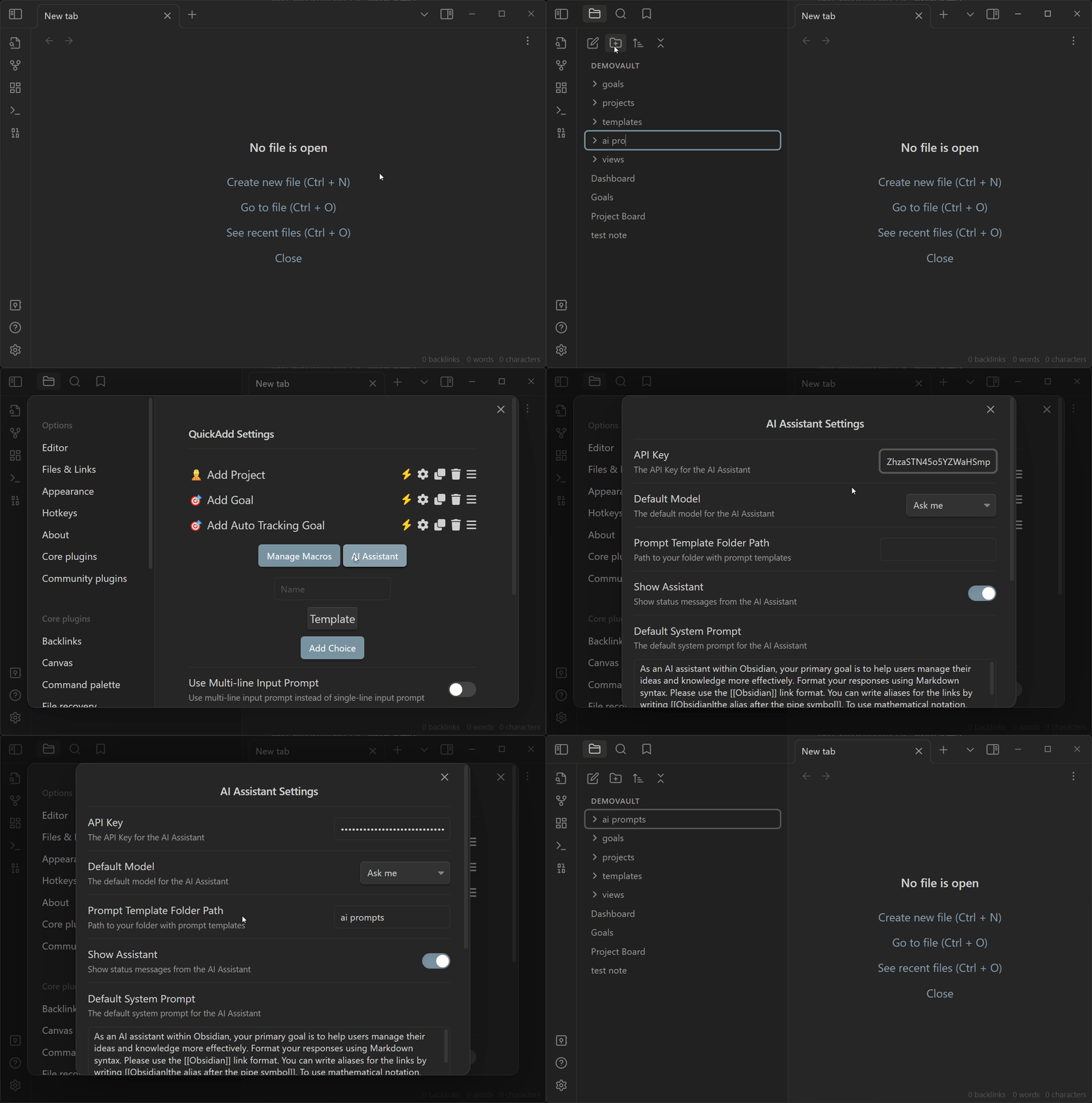
Prompt templates are Markdown notes in your prompt template folder. They can use QuickAdd Format Syntax, including values collected earlier in the same macro.
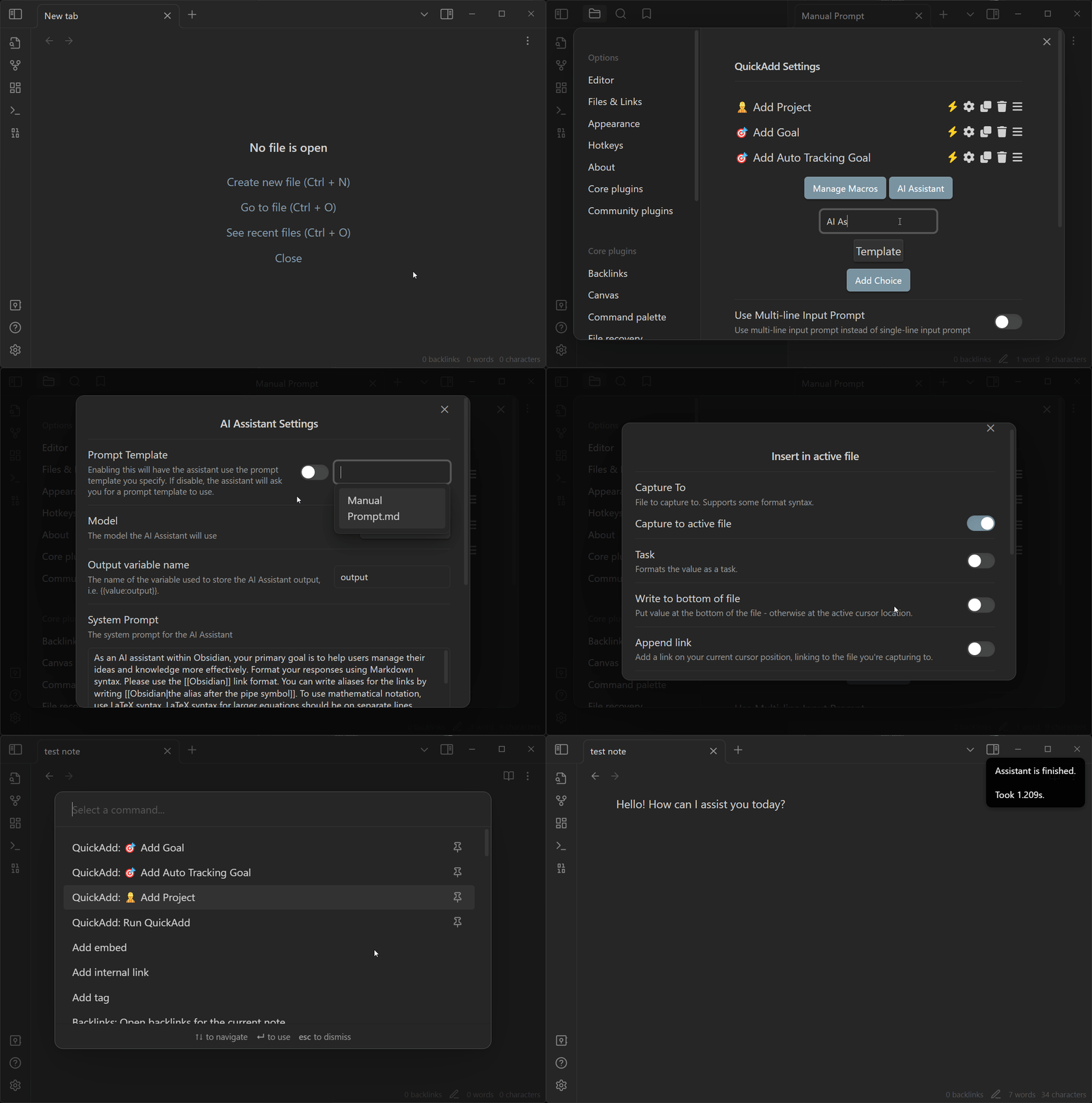
After setup, add an AI Assistant command to a Macro. The command formats the selected prompt template, sends it to the selected model, then stores the response as macro variables for later steps.
Settings semantics
AI Assistant settings apply across all AI Assistant commands unless a Macro command overrides them:
- Prompt Template Folder Path is the folder QuickAdd reads prompt-template notes from.
- Providers is the list of model endpoints and model ids QuickAdd can use.
- Default Model is used when a command does not override the model. Ask me opens a model picker at run time.
- Default System Prompt is sent with AI requests unless a command overrides it.
- Show Assistant controls QuickAdd's AI progress notices.
- Confirm AI tool calls controls script-agent tool confirmation. See Tool approval and safety.
Individual AI Assistant Macro commands can override:
- Prompt Template, which is a Markdown note in the prompt template folder, not raw prompt text.
- Model, which overrides the default model for that command.
- Output variable name, which controls the variable names written for later Macro steps.
- System Prompt, which overrides the default system prompt for that command.
- Advanced model parameters, described in Advanced sampling settings.
Providers and local models
QuickAdd supports OpenAI-compatible providers, Google Gemini, and Anthropic. Custom or unknown providers use the OpenAI-compatible request shape by default.
Built-in provider cards are available for:
- OpenAI
- Gemini
- Anthropic
- Groq
- TogetherAI
- OpenRouter
- Hugging Face
- Mistral
- DeepSeek
Provider API keys are stored through Obsidian SecretStorage. QuickAdd stores the secret reference in settings, not the key value. Older plaintext provider keys are migrated to SecretStorage.
Add a provider
- Open AI Assistant Settings.
- Click Edit Providers.
- Click Add Provider.
- Pick a provider card, select a SecretStorage entry for the API key, then click Connect.
- Click Edit on the provider and add or import models.
For a provider that is not listed, click Add custom... under Custom provider. Set the provider name, endpoint, API key secret if needed, model source, and models manually.
Local models and Ollama
Use Custom provider for Ollama and most local OpenAI-compatible servers.
For Ollama:
Name: Ollama
Endpoint: http://localhost:11434/v1
API Key: leave blank
Model source: Provider /v1/models
Models: import from the running Ollama server, or add the model name manually
Leaving the API key blank works for Ollama. Model import from /v1/models sends no Authorization header when the key is blank. Regular OpenAI-compatible chat requests still include an empty Bearer header. If your local server rejects that, configure the server to allow it or select a SecretStorage entry with the token it expects.
When adding a model manually, the model name must match the id your server expects, such as mistral or llama3.1. The Max Tokens value is the model's context window. See Model settings and token budgets.
Model source
Each provider has a Model source setting:
- Provider /v1/models asks the provider endpoint for its model list. This is the usual choice for local providers like Ollama when the server is running.
- models.dev directory imports from the public models.dev directory when that directory knows the provider.
- Automatic tries the provider first and falls back to models.dev when QuickAdd can map the endpoint.
If model import fails, you can still add models manually. Use the provider's exact model id and the model's context-window token count.
Model settings and token budgets
Max Tokens
In the provider model list, Max Tokens means the model's context window. It is the total amount of prompt plus response context the model can handle, according to the configured provider metadata or the value you entered manually.
QuickAdd uses this value for local estimates, model lookup, and chunk sizing. It does not mean "make the answer this long", and setting it higher than the provider actually supports does not increase the provider's real limit.
QuickAdd's token counts are local estimates. Providers enforce the exact limits. For single AI Assistant prompts, QuickAdd logs when the local prompt estimate is above the configured context value, but it still sends the request. The provider may accept it or reject it with a context-window error.
Use these rules when choosing a value:
- For
gpt-4o-mini, enter128000, not a smaller output limit. - For a local model, use the context window configured for that local model.
- If you do not know the value, import models from the provider if possible, or use the provider's model documentation.
Max Chunk Tokens
The chunked AI prompt flow has a separate Max Chunk Tokens setting. It controls the estimated token budget for the text inserted into {{VALUE:chunk}} for each chunk.
The system prompt and prompt template are counted separately. Values above the selected model's estimated input budget are capped automatically.
Output length
The regular Macro AI Assistant command does not have a separate output-length field.
In scripts, quickAddApi.ai.agent() accepts maxOutputTokens in the agent config or per generate() call. QuickAdd maps that option to the provider-specific output field where the provider supports one.
Anthropic requests always require an output token budget. When no explicit maxOutputTokens is set, QuickAdd uses a conservative default of 4096, or the configured model context if it is smaller.
Advanced sampling settings
AI Assistant commands expose advanced model parameters:
- Temperature controls randomness. Lower values are more focused. Higher values are more varied.
- Top P controls nucleus sampling.
- Frequency Penalty reduces repeated wording on providers that support it.
- Presence Penalty encourages new topics on providers that support it.
Gemini requests use temperature and top P. QuickAdd does not send frequency or presence penalties to Gemini.
OpenAI reasoning models and some other providers reject certain sampling parameters. If a provider rejects a request, remove advanced parameters first and retry with the provider defaults.
Macro output variables
An AI Assistant Macro command stores the model response in the command's Output variable name. The default name is output.
If Output variable name is summary, QuickAdd writes:
summary: the response textsummary-quoted: the same response formatted as a Markdown blockquote, with each line prefixed by>
Later commands in the same Macro can use those values:
{{VALUE:summary}}

{{VALUE:summary-quoted}}
The variables are scoped to that Macro run. A separate QuickAdd choice run does not receive them.
Example: AI-generated note title
Create a prompt-template note named Title Prompt.md in your prompt template folder:
Generate a short filename-safe title for this text. Reply with only the title.

Text: {{VALUE}}
Then use a Macro with two steps:
- AI Assistant command
- Prompt template:
Title Prompt.md - Output variable name:
aiTitle - Use a low temperature if you want more repeatable titles.
- Prompt template:
- Template command
- File Name Format:
{{VALUE:aiTitle}} - Template body can also include
{{VALUE:aiTitle}}.
- File Name Format:
The same pattern works with Capture choices and User Script commands that run after the AI step.
Read the result in a script
When a User Script runs later in the same Macro, read the same variable from params.variables:
module.exports = async (params) => {
  const description = params.variables.description;
  console.log(description);
};
If this is empty, check the AI Assistant command's Output variable name. It must be description, or your script must read the default output.
Script API assignment is explicit
quickAddApi.ai.prompt() and quickAddApi.ai.chunkedPrompt() return an object with the response variables. They write those variables into later Macro steps only when you set shouldAssignVariables: true or assignToVariable.
module.exports = async ({ quickAddApi }) => {
  await quickAddApi.ai.prompt("Summarize the current selection.", "gpt-4o-mini", {
    assignToVariable: "summary",
  });
};
assignToVariable also writes summary-quoted. Avoid names that are reserved by the formatter or variable plumbing: value, title, text, meta, names ending in -quoted, names starting with __qa., and names containing | or ,.
Structured JSON output
Use structured output when you want separate fields from one model response, such as title, summary, and tags. This is a User Script workflow, not the plain Macro AI Assistant command.
The pattern is:
- User Script calls
quickAddApi.ai.agent().generate({ prompt, schema }). - The script checks
result.object. - The script assigns fields to
params.variables. - A later Template or Capture step uses
{{VALUE:name}}where each field belongs.
module.exports = async ({ quickAddApi, variables }) => {
  const selectedText = quickAddApi.utility.getSelection();
  if (!selectedText) {
    throw new Error("Select text before running this macro.");
  }

  const result = await quickAddApi.ai.agent({ model: "gpt-4o-mini" }).generate({
    prompt: `Extract a title, a short summary, and up to five tags from this text:\n\n${selectedText}`,
    schema: {
      type: "object",
      properties: {
        title: { type: "string" },
        summary: { type: "string" },
        tags: {
          type: "array",
          items: { type: "string" },
        },
      },
      required: ["title", "summary", "tags"],
    },
  });

  const data = result.object;
  if (!data || typeof data !== "object") {
    throw new Error("The AI response did not match the expected JSON shape.");
  }

  variables.aiTitle = String(data.title ?? "");
  variables.aiSummary = String(data.summary ?? "");
  variables.aiTags = Array.isArray(data.tags)
    ? data.tags.map(String).join(", ")
    : "";
};
Then use a Template step after the script:
# {{VALUE:aiTitle}}

{{VALUE:aiSummary}}

Tags: {{VALUE:aiTags}}
Structured output supports a small JSON Schema subset: type, properties, required, items, enum, const, description, and title. Avoid provider-specific schema keywords such as minLength, pattern, $ref, format, anyOf, and allOf in QuickAdd examples.
If the model response does not parse or does not validate, QuickAdd makes one repair attempt. If that still fails, result.object is undefined, so scripts should handle that as shown above.
Tool and function calling
QuickAdd 2.14.0 added a script API for tool and function calling:
quickAddApi.ai.agent(config)creates an agent.agent.generate({ prompt })runs a bounded multi-step loop.quickAddApi.ai.tool(def)declares a JavaScript function the model may call.quickAddApi.ai.tools.vault(),workspace(), andsystem()provide opt-in built-in tools.
Tools are available from User Scripts. They are JavaScript functions, so they do not live inside a stored AI Assistant Macro command.
module.exports = async ({ quickAddApi }) => {
  const agent = quickAddApi.ai.agent({
    model: "gpt-4o-mini",
    system: "Answer from the user's vault when possible.",
    tools: {
      ...quickAddApi.ai.tools.vault({
        only: ["read_note", "search_notes"],
      }),
      word_count: quickAddApi.ai.tool({
        description: "Count words in a text string.",
        inputSchema: {
          type: "object",
          properties: {
            text: { type: "string" },
          },
          required: ["text"],
        },
        readOnly: true,
        execute: ({ text }) => {
          const words = String(text ?? "")
            .trim()
            .split(/\s+/)
            .filter(Boolean);
          return { count: words.length };
        },
      }),
    },
    maxSteps: 12,
  });

  const result = await agent.generate({
    prompt: "What do my notes say about project planning?",
    assignToVariable: "answer",
  });

  return result.text;
};
Agent results include:
text: final assistant textobject: structured result, only whenschemawas passedsteps: tool-loop stepstoolCallsandtoolResults: calls and results from the last stepusage: input, output, and total token countsfinishReason: why the run stopped
By default, agents use up to 20 steps. maxSteps is capped at 100.
Tool approval and safety
The global Confirm AI tool calls setting defaults to Destructive tools only (recommended):
readOnly: truetools run automatically under the default setting.- Tools that are not read-only ask for confirmation under the default setting.
needsApproval: truealways asks for confirmation.- Always confirm every tool asks for every tool.
- Never defers to each tool's own
needsApproval.
Tool handlers run with the same privileges as your script. The model chooses tool names and arguments. Treat those arguments as untrusted input. Validate paths and values, never pass tool input to quickAddApi.format(), eval, a shell, or a network request without your own checks, and do not put secrets in tool descriptions or arguments because those are sent to the provider.
For the full script API surface, see the QuickAdd API reference.
Troubleshooting
The AI settings button is missing
Turn off Disable AI & Online features in QuickAdd settings. The AI settings button is hidden while AI and online features are disabled.
My model is not listed
Open AI Assistant Settings > Edit Providers > your provider > Edit. Import models, sync models, or add the model manually. The model name must exactly match what the provider expects.
A local provider does not respond
Check that the local server is running and that the endpoint includes the right base path. For Ollama, use:
http://localhost:11434/v1
If the server requires auth, select an API key secret. If the API key is blank, model import sends no Authorization header, while OpenAI-compatible chat requests include an empty Bearer header.
Max Tokens is confusing
Use the model's context-window size. Do not use the model's advertised output limit. If a request is rejected for context length, shorten the prompt, pick a model with a larger context window, or use chunked prompting.
A later Macro step cannot read the AI result
Check these in order:
- The AI Assistant command and the later command must be steps in the same Macro.
- The later step must use the AI command's Output variable name.
- If you did not set a name, read
{{VALUE:output}}. - In a script step, inspect
Object.keys(params.variables)to see what arrived. - If you called
quickAddApi.ai.prompt()from a script, setshouldAssignVariables: trueorassignToVariable.
My script does nothing
QuickAdd User Scripts must export a function. Put your code inside module.exports:
module.exports = async ({ quickAddApi, variables }) => {
  const result = await quickAddApi.ai.prompt("Say hello.", "gpt-4o-mini");
  variables.output = result.output;
};
See the User Scripts Reference.
Structured output returned no object
result.object can be undefined when the model fails to return JSON that matches the schema after QuickAdd's repair attempt. Keep the schema simple, use a current model that supports structured output, and handle the missing object in your script.
A tool run is waiting forever
The tool probably opened a confirmation modal. In unattended CLI runs, use only readOnly: true tools, change Confirm AI tool calls for that vault, or design your script so needsApproval is not required for that path.
Workflow ideas
- Summarizer: summarize selected text and capture it to a note.
- Transform Selected: rewrite the active selection with a prompt template.
- AI title: generate a filename-safe title, then use it in a Template step.
- Structured note: extract fields with
agent.generate({ schema }), then place them in an output template. - Vault Q&A: use
ai.agent()with read-only vault tools to answer from notes.
All provider usage may incur provider costs. Use provider-side spending limits where available.