
A Template choice creates a new note from a template file or applies a template to an existing note. Press a hotkey, answer any prompts, and QuickAdd builds the note - filling in dates, your answers, and links as it goes. Use it to spin up a book note, a meeting note, or a project page from a layout you keep once and reuse everywhere.
Templates use QuickAdd’s own format syntax - prompts, dates, and variables included - so no other plugin is required. If your templates come from the Templater plugin, see Coming from Templater for the QuickAdd-native way to do each familiar job.
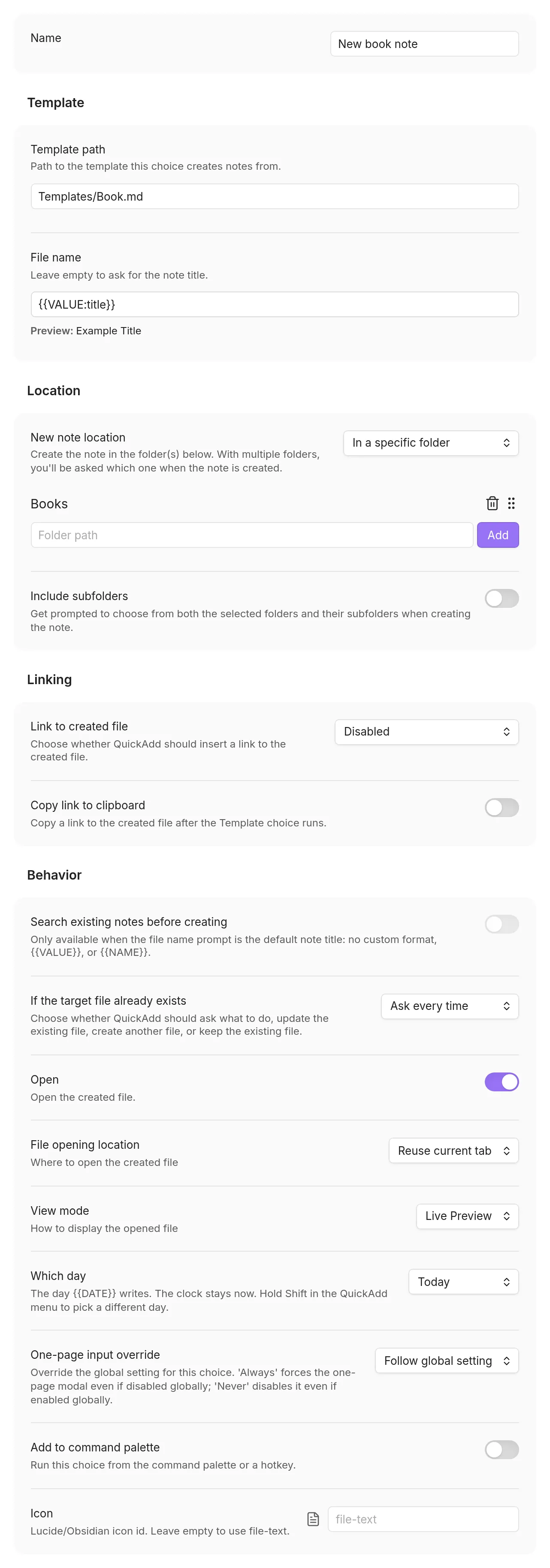
Set up your first template choice
Section titled “Set up your first template choice”-
Create folders named
TemplatesandBooks, then createTemplates/Book.md:Templates/Book.md ---author:status: reading---# {{VALUE:title}}Started {{DATE}} -
Open Settings → QuickAdd and choose New choice → Template.
-
The choice’s settings open as a page of the settings window. Set Name to
New book note. (Before QuickAdd 2.30.0, they open in a dialog; click the name at the top to rename it.) -
Set Template path to
Templates/Book.md. -
In File name, enter
{{VALUE:title}}. (Before QuickAdd 2.30.0, this is File name format; turn its toggle on first.) -
Set New note location to In a specific folder. Enter
Booksin Folder path and click Add. -
Turn Open on. Set File opening location to Reuse current tab and View mode to Live Preview.
-
Close Settings. Leaving the page saves it. (Before QuickAdd 2.30.0, choose Done first.)
-
Run QuickAdd: Run from the command palette and pick
New book note. EnterDunefor title and confirm with Ok.
QuickAdd creates Books/Dune.md from your template, with the title, date, and
frontmatter filled in. Assign the choice a hotkey (⚡ icon, or Obsidian’s
Hotkeys settings) once it behaves the way you want.
Tokens in template properties
Section titled “Tokens in template properties”A bare token in frontmatter, like Title: {{VALUE:fileName}}, is not valid
YAML, so Obsidian logs a console warning when it indexes the template file
itself. The warning is cosmetic - QuickAdd reads the template as text and the
created note is fine - but if you want a quiet console, wrap the token in
quotes:
Title: "{{VALUE:fileName}}"Two things to know about the quoted form:
- QuickAdd escapes the filled-in value for the surrounding quotes, so answers
containing
"or'can’t break the created note’s frontmatter. - Quotes normally make the property a string. For a typed property, declare
the type on the token and the quotes are consumed:
rating: "{{VALUE:rating|type:number}}"writesrating: 42, which Obsidian reads as a Number (same for|type:checkboxand|type:slider).
Run a template without making a choice
Section titled “Run a template without making a choice”If you just want to spin up a note from a template in your template folder without maintaining a Template choice per file, use the New note from template command. It lists the templates in your configured folder, prompts for the new note’s name, and creates it in Obsidian’s default location.
New note from template uses a discovery-first title picker: as you type the new note name, QuickAdd shows matching existing notes and unresolved wikilink targets first. Choose an existing note to open it unchanged, or choose the Create new note row to create the note from the selected template.
The builder groups a Template choice’s settings into four sections: Template (template path and file name format), Location (where the file is created), Linking (whether and how to link to the created file), and Behavior (what happens when the file already exists, and how the file is opened).
Point to the template file: Template path
Section titled “Point to the template file: Template path”Template path is the one required setting: the path to the template you want
to insert. Paths are vault-relative; a leading / is ignored.
Templates/Book.mdQuickAdd supports markdown (.md), canvas (.canvas), and base (.base)
templates. The created file uses the same extension as the template. If you want
a new markdown note to include a live embedded Base dashboard, see
Template: Create an MOC Note with a Link Dashboard.
Use a dynamic template path
Section titled “Use a dynamic template path”The template path supports format syntax, so the path can
change from run to run. Named values ({{VALUE:client}}), dates
({{DATE:YYYY}}), fields, and global variables all work in the path. The same
applies to the Capture choice’s Create file with template path.
Templates/{{VALUE:collectionName}} Template.mdRunning the choice prompts for a collection name and resolves to a path like
Templates/Games Template.md. The created file’s extension comes from the
resolved path, so a placeholder that expands to .canvas or .base produces a
canvas or base file.
A path is resolved with a path-safe subset of the format syntax:
- Macros, inline JavaScript, and
{{TEMPLATE:...}}inclusion are not run while computing a path. {{TITLE}}cannot be used in a path (the title is derived from the created file, not the source template).- The note-relative placeholders
{{FOLDER}},{{FILENAMECURRENT}},{{LINKCURRENT}}, and{{LINKSECTION}}are left as-is in a template path, since they describe the runtime note/folder context (the target folder, or the active note and the cursor’s heading) rather than the source template.{{FOLDER}}is still available in file names and template bodies.
Name the new note: File name
Section titled “Name the new note: File name”File name sets a format for the created file’s name, using format syntax - so file names can be dynamic too.
£ {{DATE}} {{NAME}}£ 2021-06-12 Manually-Written-File-Name{{NAME}} is a value you enter when invoking the template. Leave File name
empty and QuickAdd asks for the note title when you run the choice, the same as
writing {{VALUE}}. Before QuickAdd 2.30.0, the field is File name format,
with a toggle that hides it while off; off asks for the note title.
A slash in the format creates a folder, so the name can include a path. The file is created under New note location.
{{DATE:YYYY}}/{{VALUE}}2026/Kickoff{{FILENAMECURRENT}} names a folder after the note you are in, for example
{{FILENAMECURRENT}}/{{VALUE}}.
Search for an existing note first
Section titled “Search for an existing note first”Search existing notes before creating applies to Template choices that use the default note-title prompt. It opens the same discovery-first picker used by New note from template: matching notes and unresolved wikilink targets appear while you type, so you can open an existing note instead of creating a duplicate.
When selecting an existing note controls what selecting a match does:
| Action | Result |
|---|---|
| Open note | Opens the note unchanged. This is the default. |
| Append template to bottom | Adds the template at the end of the note, after one blank line. |
| Insert template at top | Adds the template below the note’s frontmatter. |
| Replace entire note | Replaces all content, including frontmatter, with the template. |
Append and insert use the same frontmatter merging as the other template update actions. Applying a template to a selected note requires a Markdown template. The picker names the action beside each existing note, so an update is visible before you select it.
The selected note keeps its path and name. QuickAdd skips File name,
New note location, and the new-note collision setting. {{TITLE}} and the
anonymous {{VALUE}} use the selected note’s basename, and {{FOLDER}} uses its
folder. The template’s other inputs still appear, including in the
one-page form.
An update finishes before the next Macro step runs and follows the choice’s linking, clipboard, and Open settings. Open note always opens the selected note without applying the template, inserting links, or copying links. When the choice asks which day it is about, it asks after the picker, and not at all when it only opens the selected note.
Selecting Create new note or an unresolved wikilink target continues with normal Template creation. If a new note’s path already exists handles any collision at that generated path. The standalone New note from template command keeps the Open note behavior for existing matches.
Which day {{DATE}} is about
Section titled “Which day {{DATE}} is about”Most of the time you want today. That’s the default, and you can leave it alone.
Sometimes you don’t. Last week’s review, yesterday’s daily, the Friday you
forgot to write. Which day is the calendar day {{DATE}} uses. The
template file stays the same. {{TIME}} is still the time you ran the
choice, so a “written at” stamp stays honest.
- Today is the default.
- Ask each time opens a date picker. Picker starts on is only the first value in that picker. You can still click another day.
- Yesterday, Last week, Next week, and Last month cover the
usual jobs. A weekly note with
|startof:weekstill lands in the right week. - Custom… is any other jump from today, like three days back or last year.
- A variable… is for a
{{VDATE}}or a script that already has the day.
When it isn’t today, hold Shift in the QuickAdd menu and the same choice asks for the day. If you want a hotkey for that, see Command palette below. You don’t need a second Daily Note choice.
Scripts and the CLI can pass a day too:
executeChoice("Weekly review", {}, { date: "last week" }), or date=ask
if you want the picker.
Decide where the note is created: New note location
Section titled “Decide where the note is created: New note location”New note location is a dropdown that controls where the note is created. Pick one of four modes:
- Obsidian default - use Obsidian’s “Default location for new notes” setting.
- In a specific folder - create the note in the folder(s) you configure below. One folder creates the note there; several folders open a suggester asking which to use. Drag a folder’s handle, or focus the handle and press ArrowUp / ArrowDown, to change the suggester order. An Include subfolders toggle (shown only in this mode) lets the suggester offer the selected folders and their subfolders. In QuickAdd 2.30.0 or later, a folder you typed but didn’t Add is added when you close the builder; earlier versions drop it.
- Same folder as current file - create the note next to the currently active file (falls back to the vault root if no file is open).
- Ask for folder each time - prompt you to pick any folder in the vault each time the choice runs.
Switching modes hides the fields that don’t apply, but your configured folder list is kept - switching back restores it.
Folder paths support format syntax, including {{VALUE}},
named values such as {{VALUE:client}}, dates, and global variables:
Projects/{{VALUE:client}}/{{DATE:YYYY}}This prompts for a client and creates the file under that client’s folder for the current year.
Link to the new note: Link to created file
Section titled “Link to the new note: Link to created file”Link to created file controls whether QuickAdd inserts a link to the note it just created - handy for leaving a trail in the note you were in. Three modes:
- Enabled (strict) - require the configured link destination to be available
- Enabled (skip if unavailable) - insert the link when possible and skip silently when a current-note destination has no focused Markdown editor
- Disabled - never append a link
With either enabled mode, Link destination controls where the link is written:
- Current note - insert the link into the active Markdown editor
- Specified note - append the link to the bottom of an existing Markdown note, such as an index or MOC, without opening that note
For Current note, strict mode keeps the legacy behavior and requires a focused Markdown editor. For Specified note, QuickAdd validates the destination note before creating the new note. It appends a normal link at the bottom of that file; it does not create the index file, insert under a heading, update properties, or remove duplicate links.
Where the link is placed
Section titled “Where the link is placed”For the Current note destination, Link placement chooses the spot:
- Replace selection - replaces any selected text with the link (default)
- After selection - preserves the selected text and places the link after it
- End of line - places the link at the end of the current line
- New line - places the link on a new line below the cursor
- In frontmatter property - adds the link to a named frontmatter property
When In frontmatter property is selected, set the property name and choose how strictly QuickAdd should handle missing or non-list properties:
- Create or convert (default) - create the property if it is missing, or convert an existing scalar value into a list before appending the new link. Object values still throw an error.
- Create if missing - create the property if it is missing. Existing scalar/object values still throw an error.
- Require list - append only to an existing list property. Empty/null properties are treated as empty lists; missing properties and existing scalar/object values throw an error.
Link or embed
Section titled “Link or embed”Link type is shown for any Current note body placement (Replace
selection, After selection, End of line, and New line). Choose
whether QuickAdd inserts a Link ([[Note]]) or an Embed (![[Note]]).
An embed transcludes the linked note’s contents at the placement position, so
for example New line + Embed drops ![[Note]] on its own line. The
inline placements (After selection, End of line) insert the embed inline
on the same line. The In frontmatter property placement and the Specified
note destination stay link-only.
What the link says
Section titled “What the link says”Link display text is shown for the selection placements (Replace selection, After selection) with the Link type. It chooses what the inserted link displays. Selected text keeps your highlight as the link’s display text:
Select "Meeting with Mark", run a Template choice whose file name format is20240101 {{SELECTED}}[[20240101 Meeting with Mark|Meeting with Mark]]With nothing selected (or when the selection can’t be represented safely inside
a link), QuickAdd inserts the plain link instead. Multi-line selections are
collapsed to a single line for the display text, and vaults using Markdown-style
links get [Meeting with Mark](20240101%20Meeting%20with%20Mark.md).
Copy a link to the clipboard
Section titled “Copy a link to the clipboard”Copy link to clipboard copies a link to the created file after the Template choice runs. This works separately from Link to created file, so you can copy the link without inserting it into the current note, or do both. The copied link is a vault-path wikilink, ready to paste into another note.
Open the note after creating: Open
Section titled “Open the note after creating: Open”Open opens the created file. When enabled, additional file-opening controls appear (these are shared with the Capture choice):
- File opening location - where to open the file: Reuse current tab, New tab, Split pane, New window, Left sidebar, or Right sidebar.
- Split direction - shown only when the location is Split pane. Arrange the new pane as Split right or Split down.
- View mode - how to display the opened file: Source, Preview, Live Preview, or Default.
- Focus new pane - shown for every location except Reuse current tab. Focus the opened tab immediately after opening.
Put {{CURSOR}} in the template body to choose
where typing starts. The marker works for new notes and existing-note updates.
The destination must be focused in an editing mode, either already or through
Open. Reading view and background panes keep their state.
Try the meeting note example to create a dated note and start typing under Notes.
Run it from a hotkey: Command palette
Section titled “Run it from a hotkey: Command palette”Add to command palette registers the choice as an Obsidian command, so you can bind a hotkey to it. It is the same switch as the lightning bolt in the choice list.
Once it is on, and Which day isn’t Ask each time, a second toggle appears: Also add “Name (pick a day)”. That registers one more command that asks which day before it runs, so you can have one hotkey for today’s note and another for any other day, from the same choice. Your main hotkey keeps using Which day.
When the note already exists
Section titled “When the note already exists”If the target file already exists decides what QuickAdd does when a note with the target name is already there. The setting works in two steps: first pick a high-level behavior, then a follow-up field appears for the two behaviors that need a detail.
With Search existing notes before creating enabled, this setting is called If a new note’s path already exists. It applies to new-note creation. Selecting an existing match has its own action.
- If the target file already exists - choose Ask every time, Update existing file, Create another file, or Keep existing file.
- Update action - shown only when you choose Update existing file.
- New file naming - shown only when you choose Create another file.
Let QuickAdd ask each time
Section titled “Let QuickAdd ask each time”QuickAdd prompts you to choose one of these actions each time the target path already exists:
- Append to bottom
- Append to top
- Overwrite file
- Increment trailing number
- Append duplicate suffix
- Do nothing
Update the existing note
Section titled “Update the existing note”These options modify the existing markdown, canvas, or base file:
- Append to bottom - adds the template content to the end of the existing file, with exactly one blank line between the note and the template, however the note ends. An empty note gets the template with no blank line above it.
- Append to top - adds the template content to the beginning of the existing file.
- Overwrite file - replaces the existing file content with the template.
Create a new note instead
Section titled “Create a new note instead”These options keep the existing file untouched and create a new file instead:
- Increment trailing number - changes trailing digits only while preserving
zero padding when present. For example,
note009.mdbecomesnote010.md. - Append duplicate suffix - keeps the full base name and adds
(1),(2), and so on. For example,note.mdbecomesnote (1).md.
Keep the existing note
Section titled “Keep the existing note”Selecting Keep existing file applies the same result as choosing Do nothing from the prompt:
- Do nothing - leaves the existing file unchanged and opens it automatically. This does not require the separate Open setting.