
Controlling Prompts
When a choice runs, every placeholder that needs input becomes a prompt: {{VALUE:title}} in a file name, {{VDATE:due,YYYY-MM-DD}} in a template, the target file of a Capture, and so on. This page covers everything you control about those prompts - which ones appear, the order they come in, how each one looks, how to make one skippable, the keys that submit or cancel, and the one-page form that asks everything at once.
For the full syntax of each placeholder and flag, see Format Syntax. For the one-page form in depth, see One-page Inputs.
What QuickAdd asks you
Section titled “What QuickAdd asks you”QuickAdd prompts whenever it meets a placeholder it cannot fill on its own:
{{VALUE}}/{{VALUE:name}}ask for text, or show a pick list when you give them options.{{VDATE:name,format}}asks for a date, and understands natural language liketomorrow.{{FIELD:name}}suggests values a property already has in your vault.{{FILE:folder}}asks you to pick a note from a folder.- Template choices may also ask for a file name or folder; Capture choices may ask which file to capture to.
You are asked once per variable, per run. If {{VALUE:title}} appears in both the file name and the template body, you answer once and QuickAdd reuses it. A variable that already has a value never prompts: prefilled variables from a macro step, the API, or the CLI skip their prompts, and even an empty string counts as an answer.
The order prompts appear in
Section titled “The order prompts appear in”Prompts follow the structure of the choice, not where the placeholders sit in your text. Take this template:
Attendees: {{VALUE:attendees}}Due: {{VDATE:due,YYYY-MM-DD}}The due prompt appears first, even though attendees comes first in the text. That is because dates are asked before named values within one piece of text. The full order:
- Template choices resolve the template path first, then the folder, then the file name, and finally the template’s content. A placeholder in the file name always prompts before anything in the template body.
- Capture choices resolve the capture target first, then the capture format.
- Within one piece of text (a file name, a template, a capture format), included templates (
{{TEMPLATE:path}}) ask their prompts first. The rest is grouped by kind, and only inside a kind do prompts follow the order they appear. The kinds run in this order: plain{{VALUE}}/{{NAME}}first, then dates ({{VDATE}}), then named values ({{VALUE:name}}), then fields ({{FIELD}}) and file pickers ({{FILE}}), with the math prompt ({{MVALUE}}) last. Dates come before named values so that a{{VALUE:due}}reusing a{{VDATE:due,...}}answer is asked once, as a date.
To be asked for one value first when prompts come one at a time, make it the plain {{VALUE}}, and name its prompt with |label:. This format asks for the body before the heading (the one-page form still lists the heading first, in format order):
## {{VALUE:heading}}{{VALUE|type:multiline|label:Body}}In a Capture, a plain {{VALUE}} takes your editor selection instead of asking, when text is selected and the Capture uses the selection.
No flag reorders individual prompts. If the sequence bothers you, switch on the one-page input form: it lists every input in one form, in the order of the steps above (after the day, when Which day asks for one) with each text’s fields in the order they appear, and you fill them in whatever order you like.
Change how a prompt looks
Section titled “Change how a prompt looks”Each control is a flag you add to the placeholder. The most common ones:
| You want | Flag | Example |
|---|---|---|
| Your own wording for the prompt | |label: |
{{VALUE:attendees|label:Who attended?}} |
| A pre-filled default | |default: |
{{VALUE:status|default:open}} |
| A large, multi-line text box | |type:multiline |
{{VALUE:notes|type:multiline}} |
| A number, slider, or checkbox | |type:number and friends |
{{VALUE:rating|type:slider|min:0|max:10}} |
| A pick list | comma-separated options | {{VALUE:low,medium,high}} |
| A pick list that also accepts custom text | |custom |
{{VALUE:home,work|custom}} |
| Several selections at once | |multi |
{{VALUE:a,b,c|multi}} |
The full reference for every flag lives in Format Syntax.
Good to know:
|label:works on{{VALUE}}placeholders,{{VDATE:...}}dates,{{FIELD:...}}suggestions, and{{FILE:...}}pickers. It names the prompt: it titles a text or date prompt in place of the variable name, names the field in the one-page form, and becomes a pick list’s placeholder. The variable name still identifies the answer for reuse. A FIELD label also titles the text prompt you get when the property has no values yet.|type:multilineupgrades a single placeholder to the large text box and overrides the global Use multi-line input prompt setting. There is no reverse flag: with the global setting on, every plain text prompt is already multi-line.|type:flags only work on single-value placeholders. A pick list ignores them.- Date prompts and the one-page form’s date fields have a calendar button at the end of the text box. It hides or shows the calendar, and every later date prompt opens the same way.
Make a prompt skippable
Section titled “Make a prompt skippable”Add |optional to let a prompt be left blank, in which case it resolves to nothing:
- [ ] {{VALUE:task}} {{VDATE:due,[📅 ]YYYY-MM-DD|optional}}An optional prompt gains a Skip button and treats an empty submission as the answer, so you are not asked again later in the run. |optional works on {{VALUE}} placeholders, option lists, {{VDATE}}, and {{FILE}}.
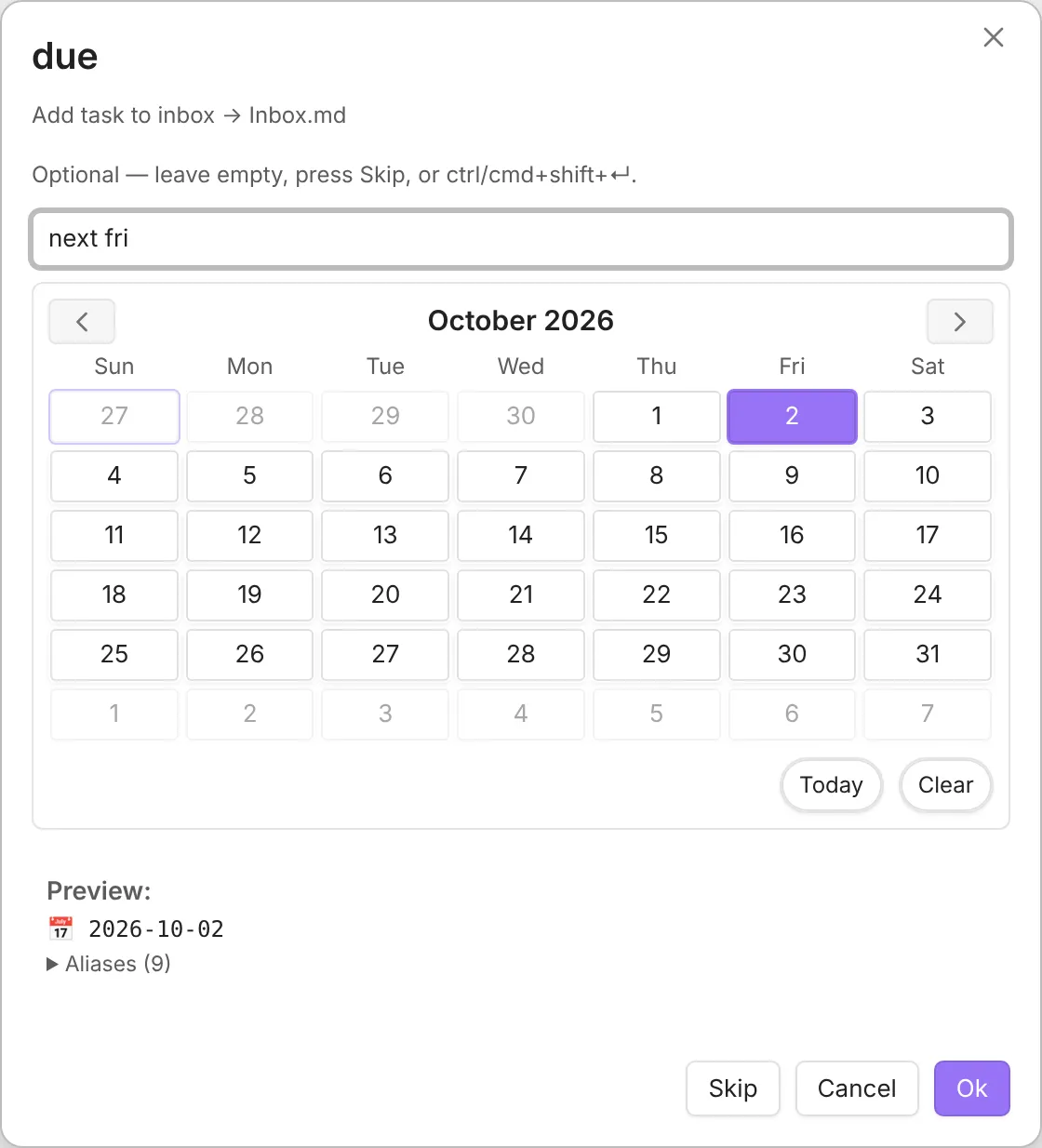
Skipping is an answer; pressing Esc still cancels the whole choice. If the same variable appears in several places, put |optional on every occurrence - that is the one spelling that behaves the same in both the sequential prompts and the one-page form.
Keys that submit, skip, and cancel
Section titled “Keys that submit, skip, and cancel”| Prompt | Submit | Also useful |
|---|---|---|
| Single-line input (also number, slider, and date prompts) | Enter |
|
| Multi-line input | Ctrl/Cmd+Enter (Enter inserts a newline) |
Tab indents; Shift+Tab moves focus out |
| Pick list / suggester | Enter picks the highlighted option |
|
Math prompt ({{MVALUE}}) |
Ctrl/Cmd+Enter |
Tab jumps to the cursor marker |
| One-page input form | Ctrl/Cmd+Enter |
Tab moves between fields |
| Any optional prompt | Ctrl/Cmd+Shift+Enter skips |
Esc cancels the prompt and with it the whole run - nothing is created or captured by the cancelled choice. (In a macro, steps that already ran are not undone.) To get a notice when that happens, enable Show input cancellation notifications under Settings → QuickAdd → Advanced (QuickAdd 2.30.0 or later; earlier versions show it on the main QuickAdd tab).
Peek at the note
Section titled “Peek at the note”Single-line and multi-line text prompts, plus the one-page input form, can get out of the way so you can read or select text in the open note, then come back to the same draft.
- Peek at note on the prompt, or
Ctrl/Cmd+Shift+Eon desktop, hides the prompt without cancelling the run. On the one-page form, it hides the whole form. Everything in the prompt survives the peek: the draft, its undo history, a paste still saving, even the text you had selected in the field. - A chip stays on screen: Insert selection replaces the field’s selection (or drops in at the caret) and returns, Return comes back as-is, and Cancel aborts the run. On the one-page form, Insert selection uses the last text field you focused, or the first text field if you have not focused one. On desktop,
Ctrl/Cmd+Shift+Ealso returns. Peek does not bindEscin the editor, so Vim users can still leave insert mode, and your other Obsidian hotkeys keep working while the chip is up. - The command QuickAdd: Return to prompt is available while a peek is open. On a phone the chip is a one-line bar under the note header, so the bottom nav and home indicator stay free, and prompt actions stay on one row (Peek / Cancel / Ok) so the keyboard does not cover Cancel.
- Peek appears on text prompts opened during a choice run or from the API, and on the one-page input form. It does not appear on QuickAdd’s own settings and builder prompts, or when the prompt opens over another dialog, because there is no note to look at. Only one run can be parked: peeking a second prompt cancels the first, and returning waits until any other open prompt is closed.
Autocomplete while you type
Section titled “Autocomplete while you type”Inside a prompt, # searches your vault’s tags and [[ searches your files (headings, blocks, and relative paths work too). See Suggester System for all triggers and keys.
These triggers work in single-line and multi-line prompts, and in text and textarea fields on the one-page form. Field and pick-list widgets keep their own inline suggestions.
One form instead of many prompts
Section titled “One form instead of many prompts”Rather than answering prompts one at a time, QuickAdd can collect everything in a single form before the choice runs. Every unanswered variable appears as the right widget - text, textarea, date with a calendar, dropdown, slider - with optional fields badged, and Template choices with a file name format get a live file name preview.
- Turn it on for everything with One-page input for choices under Settings → Input.
- Template and Capture choices each have a One-page input override dropdown in their builder (Follow global setting, Always, Never), so you can flip the form on or off for one choice.
- A few inputs still run as follow-up steps after the form, such as
{{FIELD:...|multi}}pickers and Capture’s insert-after heading picker. - Cancelling the form cancels the whole run, exactly like cancelling a sequential prompt.
The full behavior - what is collected, date parsing, defaults, and script-declared inputs - is documented in One-page Inputs.
Style pickers with CSS
Section titled “Style pickers with CSS”Requires QuickAdd 2.28.0 or later.
QuickAdd’s pickers are standard Obsidian pickers, so they open near the top of the window like the command palette, while text prompts open in the middle. To change that, target these classes from a CSS snippet:
| Class | Picker |
|---|---|
qa-choice-suggester |
The QuickAdd launcher and Multi choices |
qa-suggester |
Single-value pick lists such as {{VALUE:a,b,c}}, the note picker for Template choices that look for existing notes, and quickAddApi.suggester in scripts |
For example, this centers QuickAdd’s pickers on desktop and leaves the command palette and other plugins alone:
body:not(.is-mobile) .prompt:is(.qa-choice-suggester, .qa-suggester) { top: auto;}A centered picker re-centers as you type, so the search box moves a little when the list gets shorter.
For script authors
Section titled “For script authors”User scripts can declare their inputs so they appear in the one-page form (quickadd.inputs), and can open a one-page form of their own at runtime with quickAddApi.requestInputs. Both are covered in One-page Inputs.